Link your Discord account
Connect your Store account to Discord and synchronize roles for active services.
Before you begin
Sign in to the Store client area as the client account owner and have your Discord account ready. A purchase is not required to link. Service roles are granted when the relevant service becomes active. Linking does not replace your Store or Panel sign-in method.
1. Open Discord from the client homepage
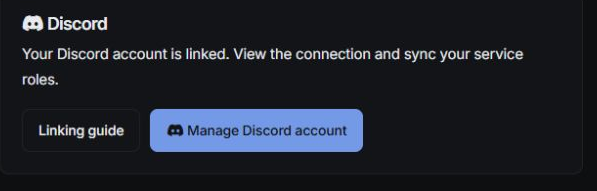
Find the Discord card and select Link Discord account. If an account is already linked, the button says Manage Discord account. You can also open the linking page directly.
2. Start linking and confirm your Discord identity
Select Link Discord account on the linking page. Your browser opens Discord. Check that you are signed in to the Discord account you want to connect, then review the application name and requested permission.
The application requests only the identify OAuth permission to identify your Discord account. Enter your Discord password only on Discord's own login page. Do not send it to support or enter it in a Store linking form.
Select Authorize on Discord and wait to return to the Store. If authorization expires, start again from the linking page; do not reuse an old callback URL.
3. Check the connection and join the server
The page shows your Discord display name, username, user ID and Role sync status. Confirm the identity, select Join Discord server to join CAFORA Discord, then select Sync roles.

Up to date means the connection has been checked against your current eligible services. An account with no active services can be up to date without receiving customer or product roles.
Which services receive roles?
| Service | Discord roles |
|---|---|
| Active MY-L | Customer + MY-L |
| Active MY-E | Customer + MY-E |
| Active Web Start / Web Plus | Customer |
Both the Store client account and the relevant service must be Active. Unpaid, pending, suspended or terminated services do not qualify. Shared customer roles remain while another eligible service exists. Scheduled synchronization handles service changes; you can also sync manually, with a 60-second cooldown between repeated requests.
Troubleshooting
- Only the account owner…: sign in as the Store account owner. Invited users cannot manage the connection.
- administrator acting as a client: an administrator impersonation session is still present. In the browser showing the message, sign out of the admin area, then sign out of the client area, and sign in directly as the client. A private window used only for client sign-in also works.
- Join the Discord server first: join CAFORA Discord with the linked Discord account, then sync again.
- Authorization expired or cancelled: start again from the linking page instead of refreshing the old callback.
- Up to date but no roles: check that you have an Active service. Linking alone does not grant roles.
- Permission, rate-limit or synchronization errors: wait and retry. If it continues, open a support ticket with the service number and page message. Never send passwords or tokens.
Change or unlink an account
On the linking page, check the unlink confirmation and select Unlink Discord. The module withdraws roles it granted and preserves pre-existing manual roles. Wait for pending cleanup to finish before linking another account. One Discord account cannot be linked to multiple Store client accounts.