Mod Errors
Troubleshoot and fix mod errors on your Cafora Minecraft server.
Illustrated procedure
Screenshots show the current application with demonstration data. Use your own service details; click an image to inspect it at full size.
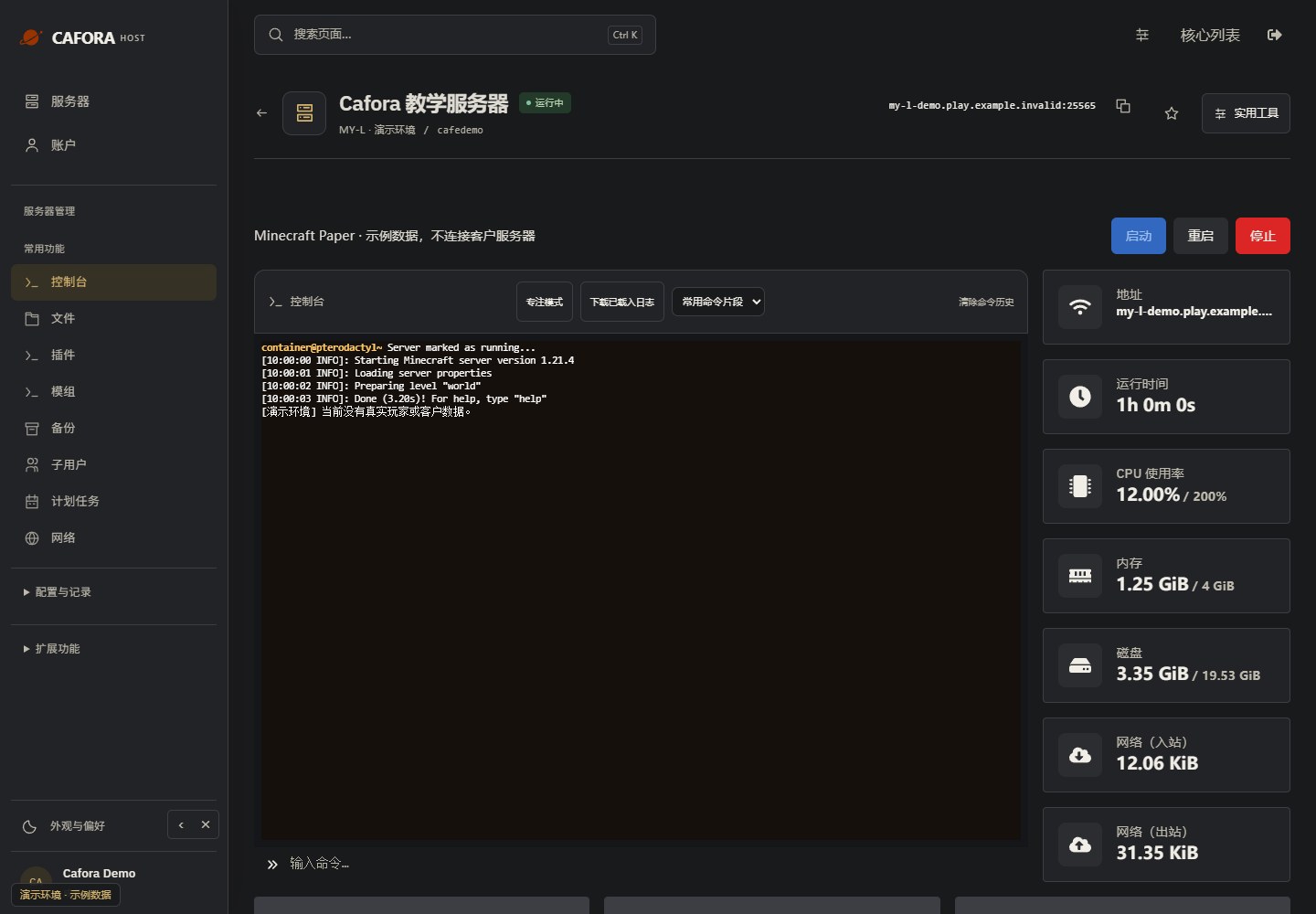
Check the console
Open Essentials → Console. Check the current state, startup output and errors before making changes. Wait for Done or your software’s ready message before joining.
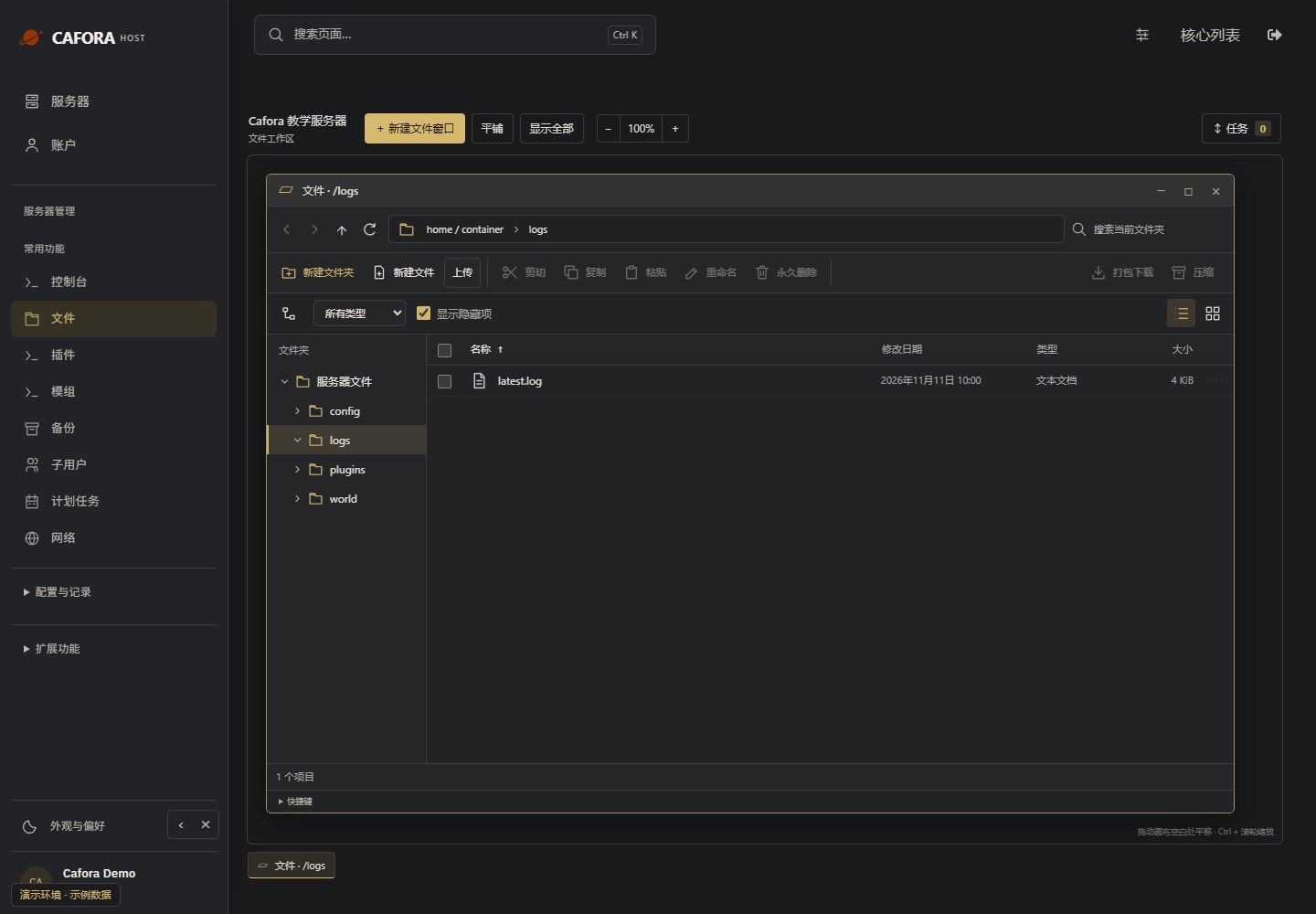
Locate the file log
Under Files, double-click logs and locate latest.log. Check modification times. Preserve the relevant file before a restart replaces or rotates it.
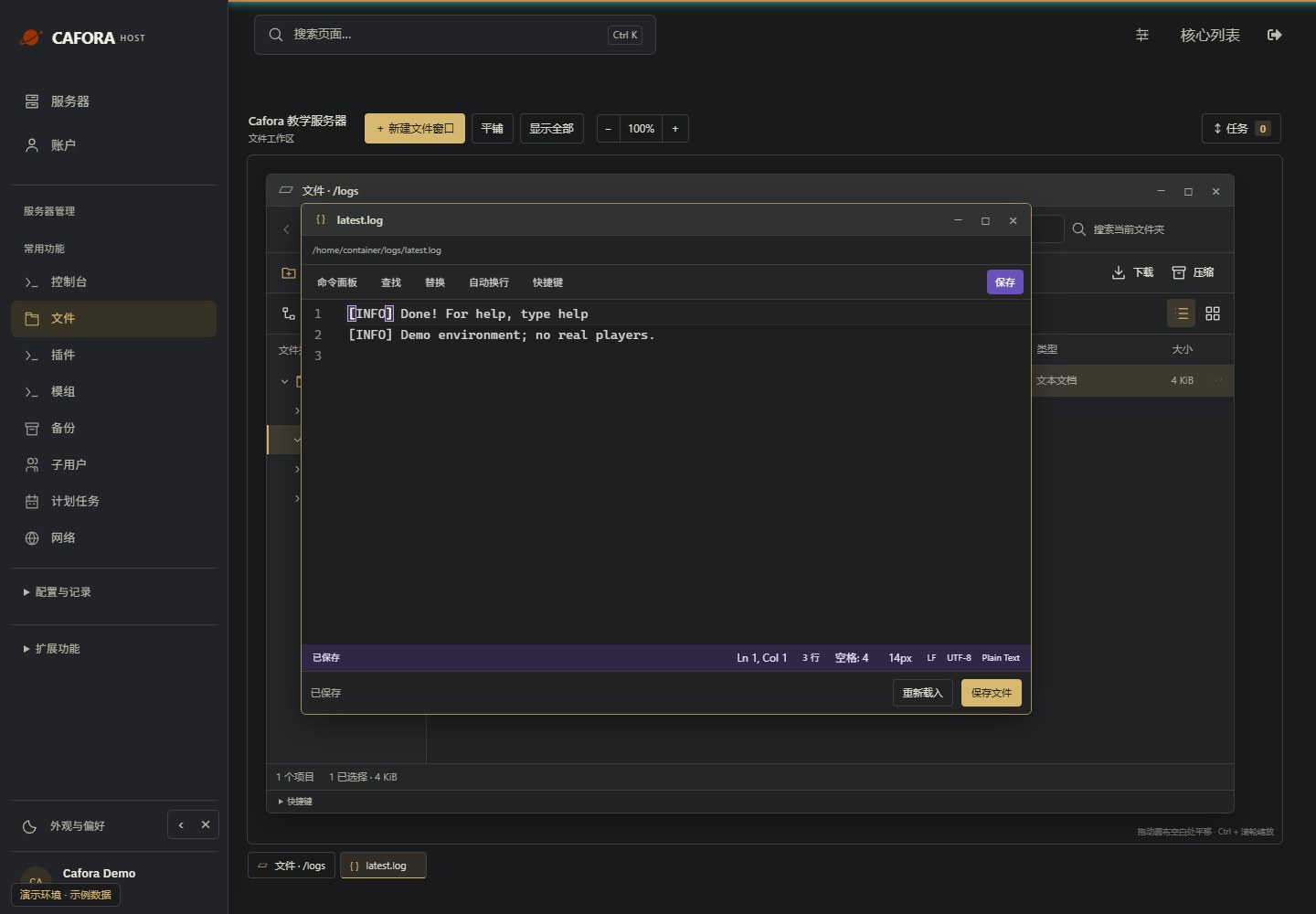
Read the complete error context
Open the log in the editor and inspect the earliest relevant error and surrounding lines. Remove tokens, passwords and private player details before sharing. Do not diagnose from the last line alone.
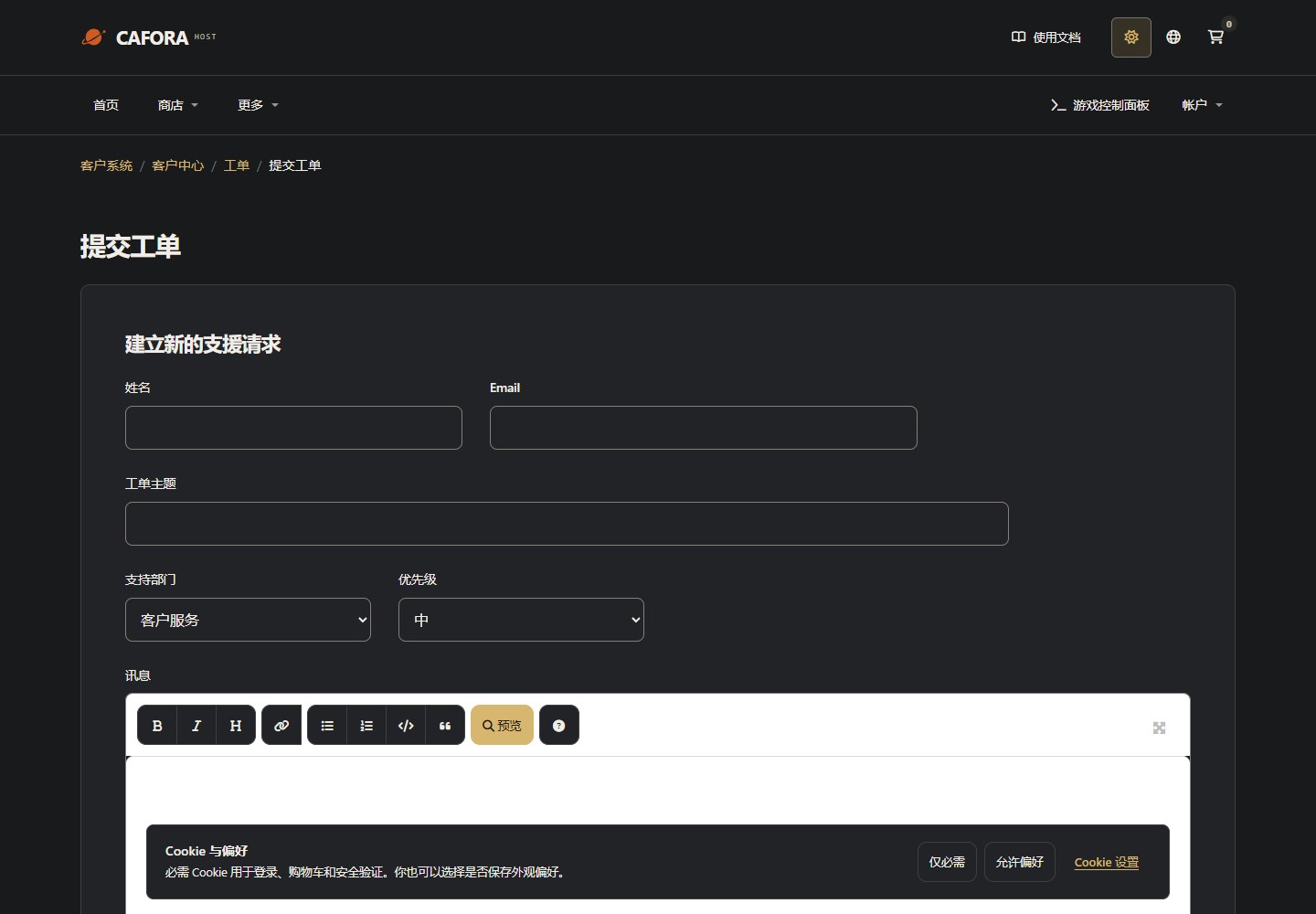
Describe the request to support
Open a support ticket with the service or invoice ID and the requested action. For connection issues include time, error and MTR evidence. Never include passwords, tokens or card details.
Common Mod Errors
Missing Dependencies
A mod requires another mod that is not installed. The server log will list the missing mod ID.
Version Mismatch
A mod is built for a different Minecraft version or mod loader version.
Mod Conflicts
Two mods modify the same game behavior in incompatible ways.
Client-Server Desync
A mod exists on the server but not on the client (or vice versa), causing connection issues.
Reading Mod Errors
Mod loaders produce detailed error reports:
- Forge: Check
logs/debug.logandcrash-reports/ - Fabric: Check
logs/latest.logfor mod resolution errors
Troubleshooting Process
Read the crash report or log to identify the problematic mod.
Verify the mod is compatible with your Minecraft version and mod loader.
Check the mod page for required dependencies.
Remove recently added mods to isolate the conflict.
Update all mods to their latest compatible versions.
For modpacks, verify the pack is complete and unmodified.
Prevention
- Test new mods one at a time
- Keep mod versions matched between server and client
- Use a known-good modpack instead of assembling mods manually
- Create backups before adding or updating mods