Install and manage mods
Updated steps and current-interface reference for install and manage mods.
Illustrated procedure
Screenshots show the current application with demonstration data. Use your own service details; click an image to inspect it at full size.
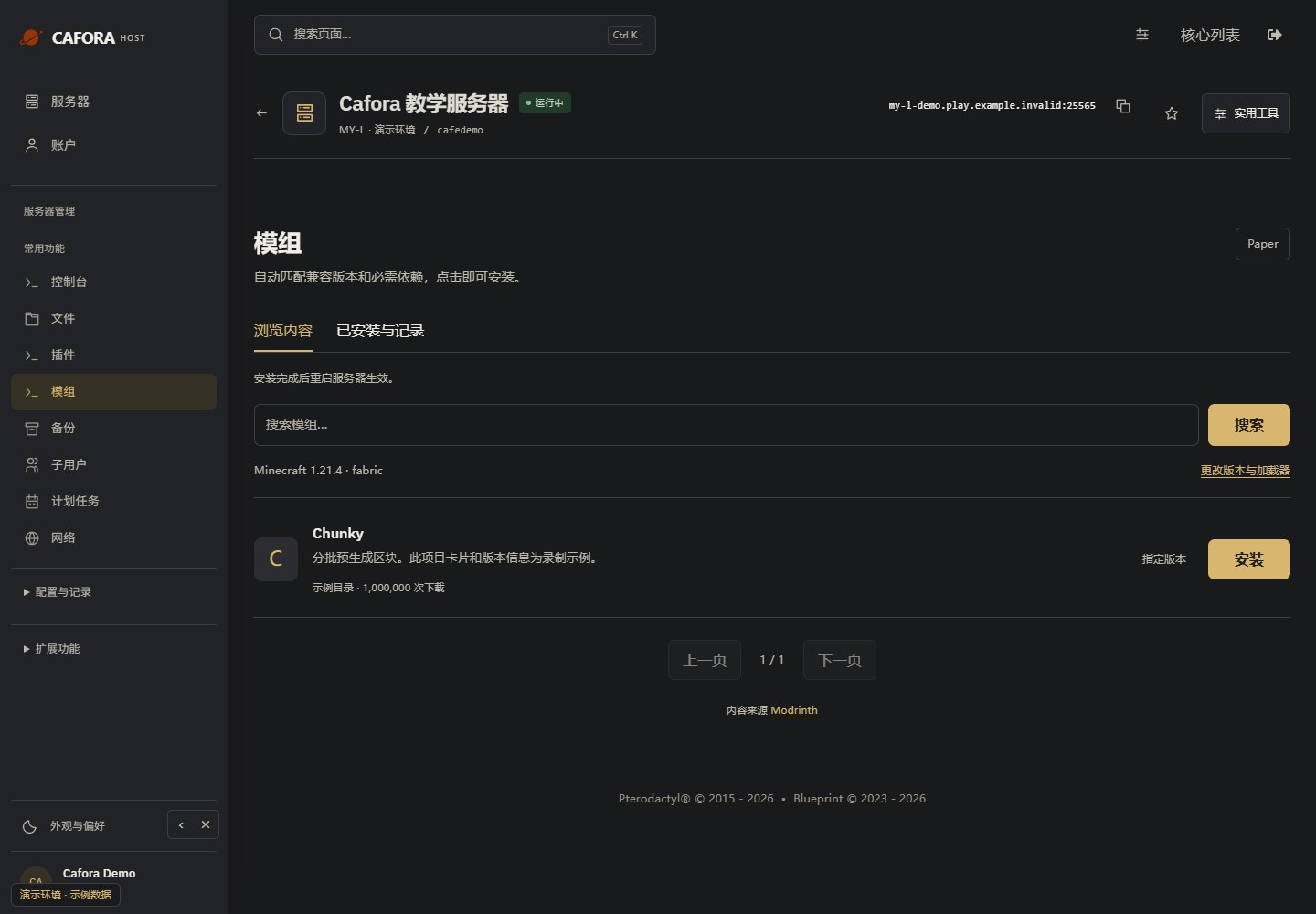
Open the mod catalog
Use Essentials → Mods and match the Minecraft version and loader. Keep client and server requirements aligned. Mods are not Bukkit plugins.
Select a compatible release
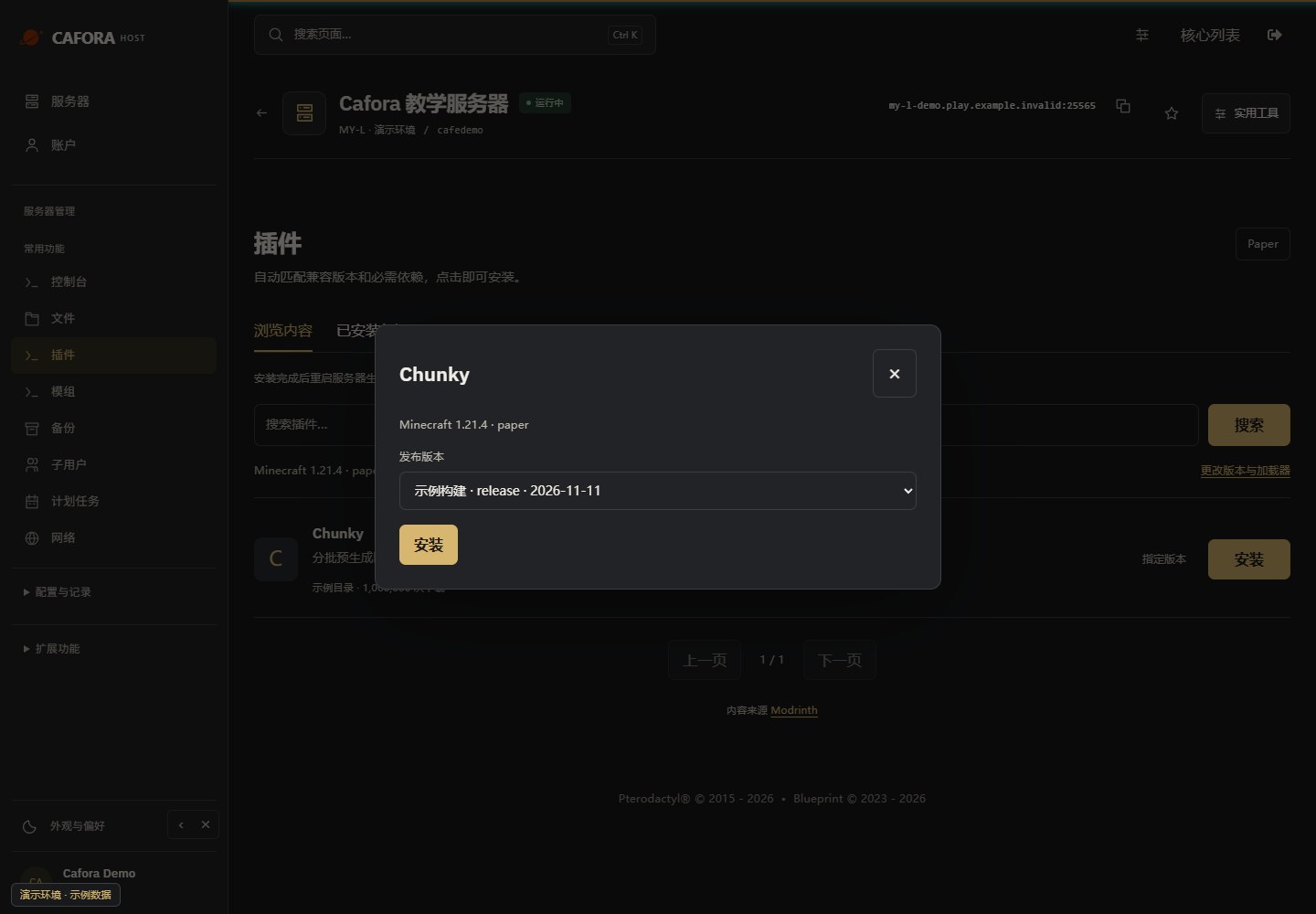
Choose Choose version, inspect the release, then use Install for that release. Required dependencies are handled by the current installer; review compatibility and keep a backup first.
Check installation activity
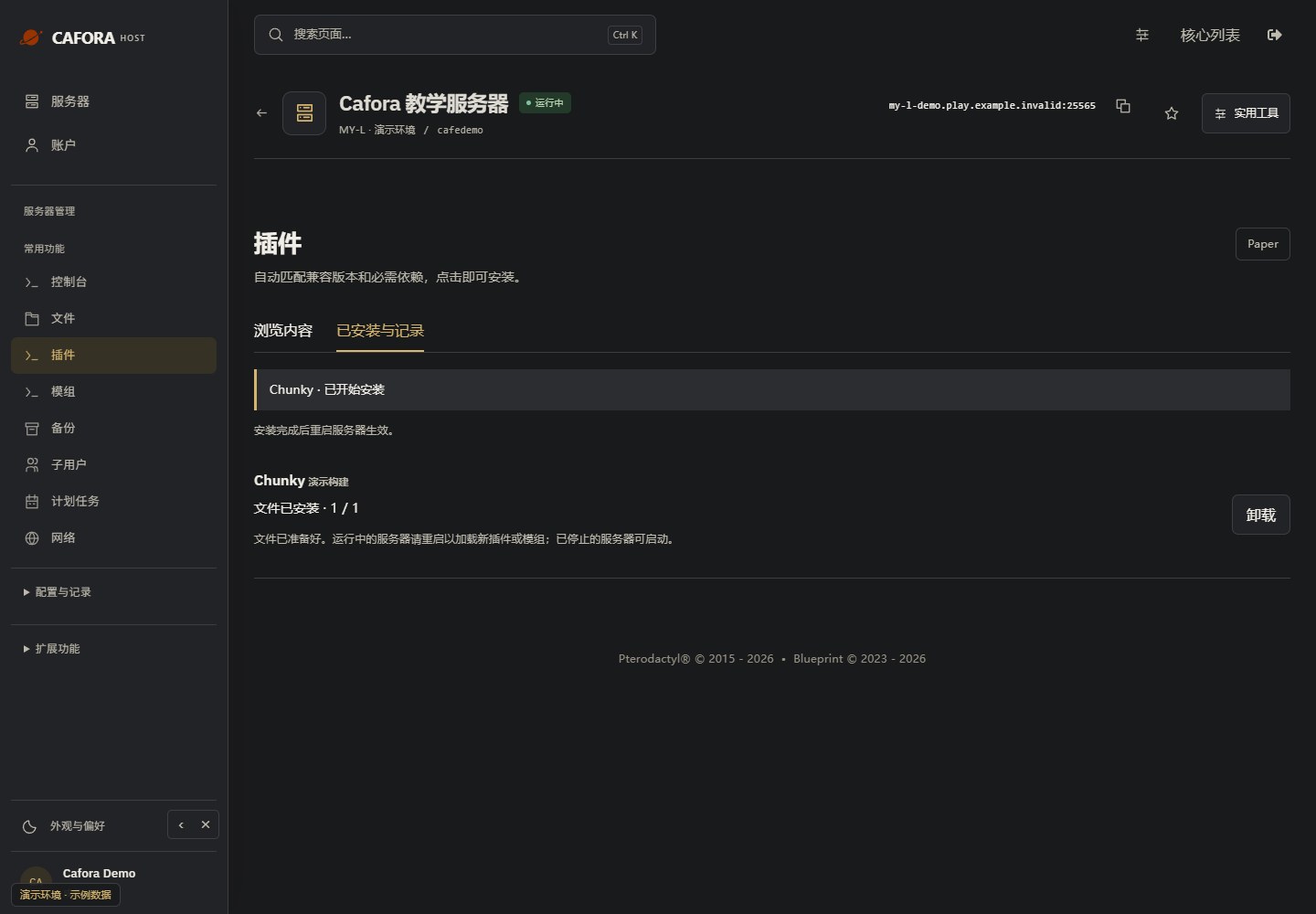
Open Installed & activity and wait for completion. Restart a running server or start a stopped one, then verify the console and plugin or mod. A download alone does not prove it loaded.
Check the console
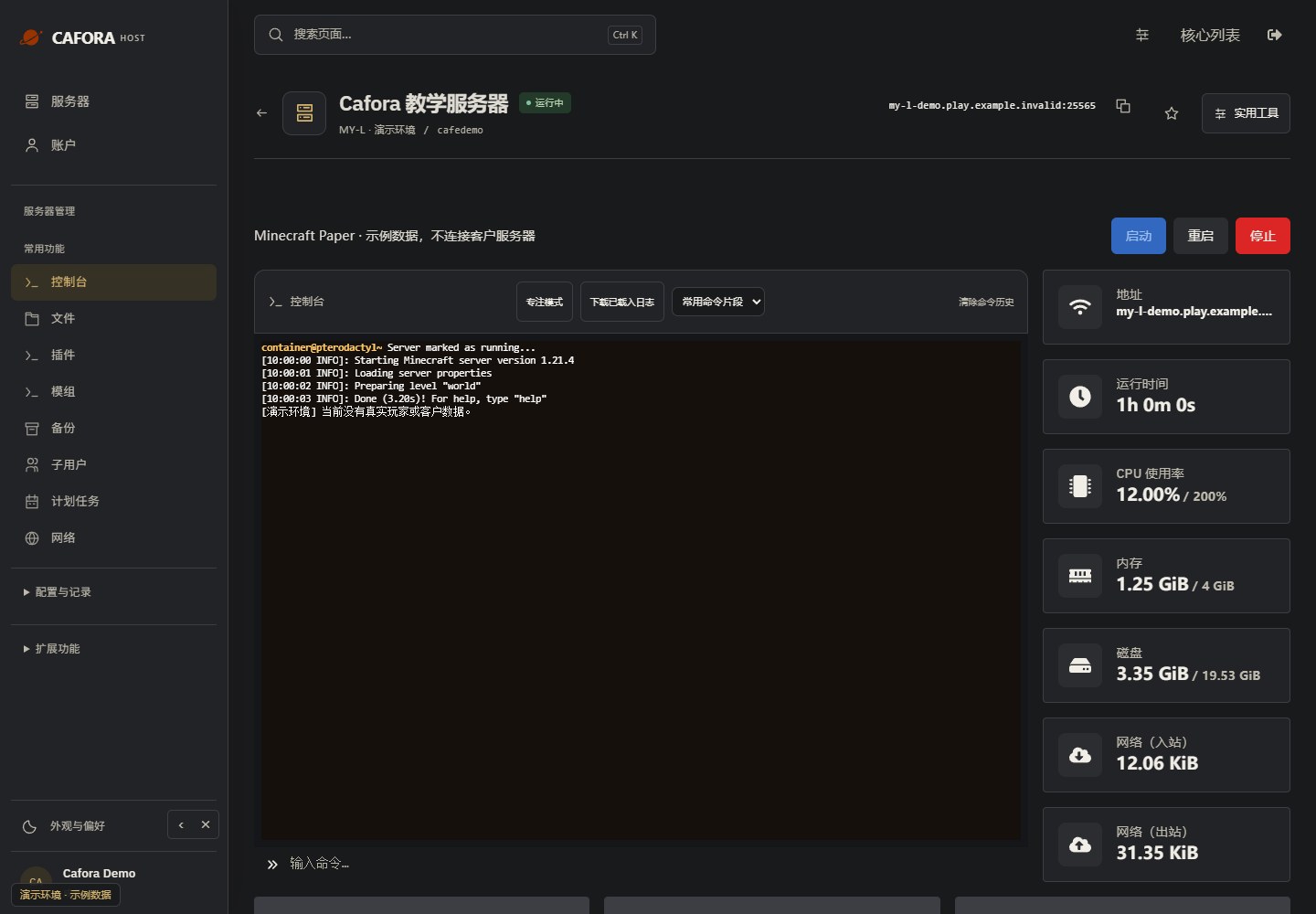
Open Essentials → Console. Check the current state, startup output and errors before making changes. Wait for Done or your software’s ready message before joining.