Worlds
Manage Minecraft worlds on your Cafora server.
Illustrated procedure
Screenshots show the current application with demonstration data. Use your own service details; click an image to inspect it at full size.
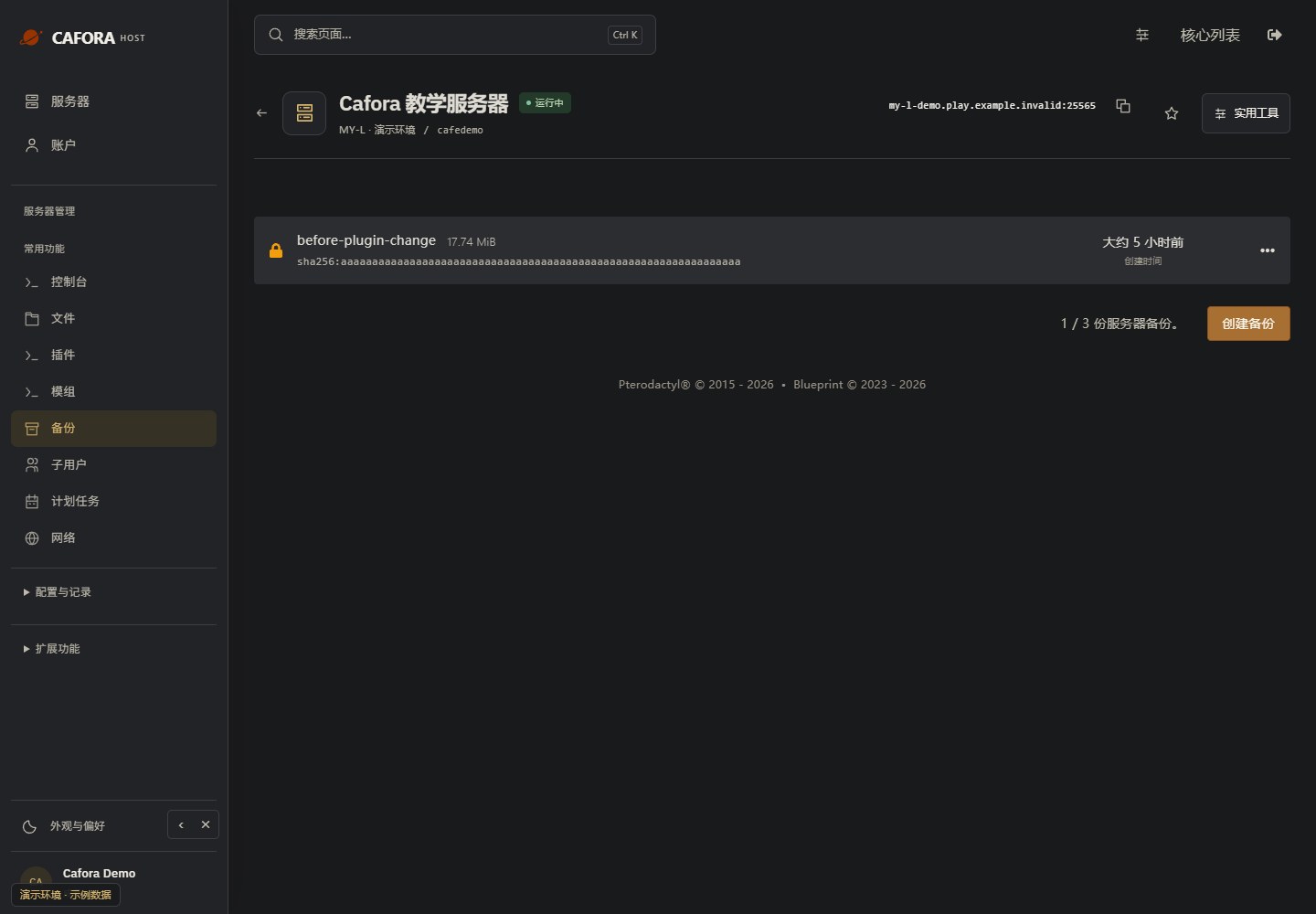
Check the backup allowance and entries
Open Backups and inspect the available allowance, names, dates and completion status. Use the limit of your own service; the example’s allowance is not a plan guarantee.
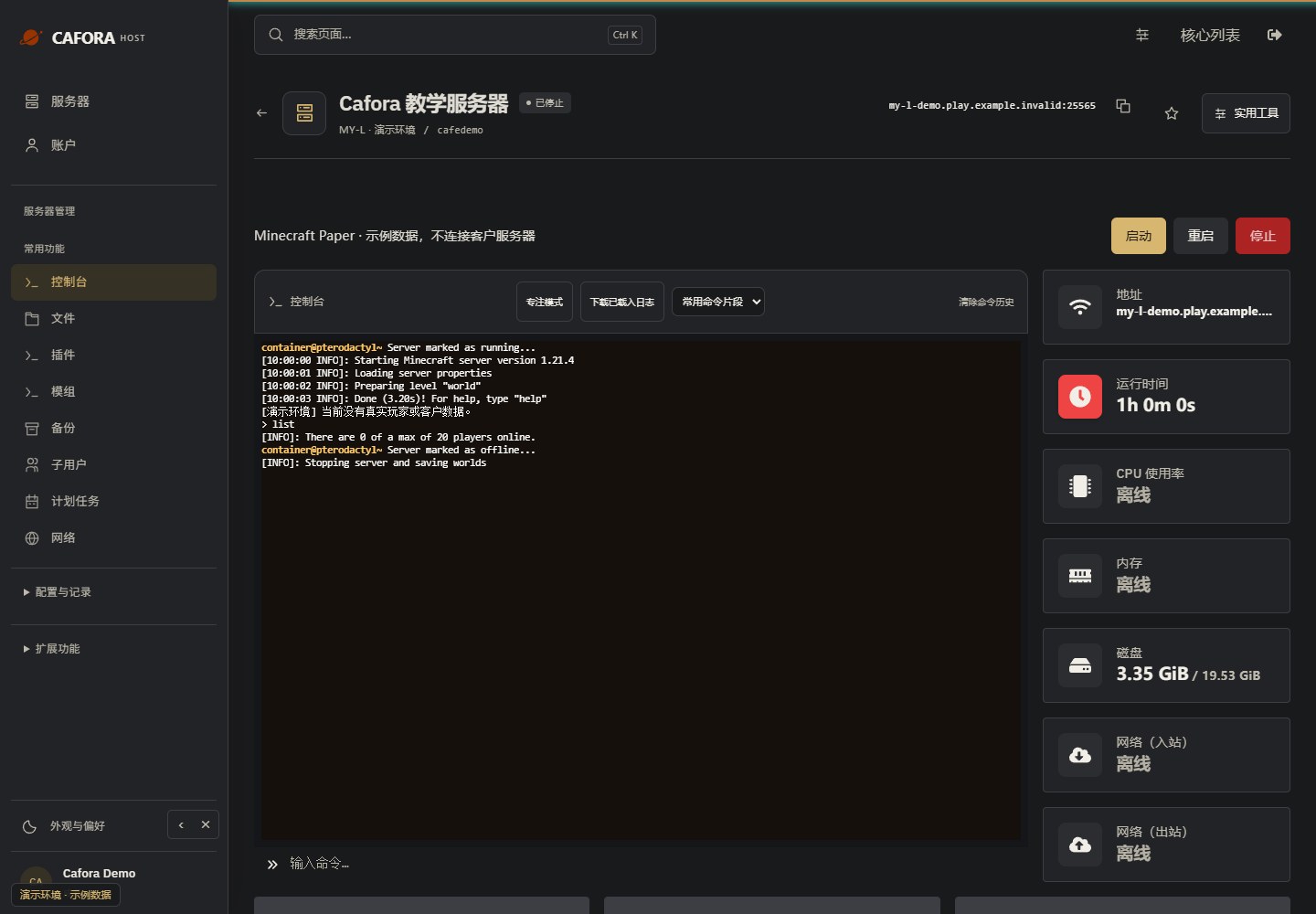
Stop and preserve the current state
Notify players, save as supported by the software, choose Stop, and wait until the process is offline. Do not use a forced kill as the normal shutdown method.
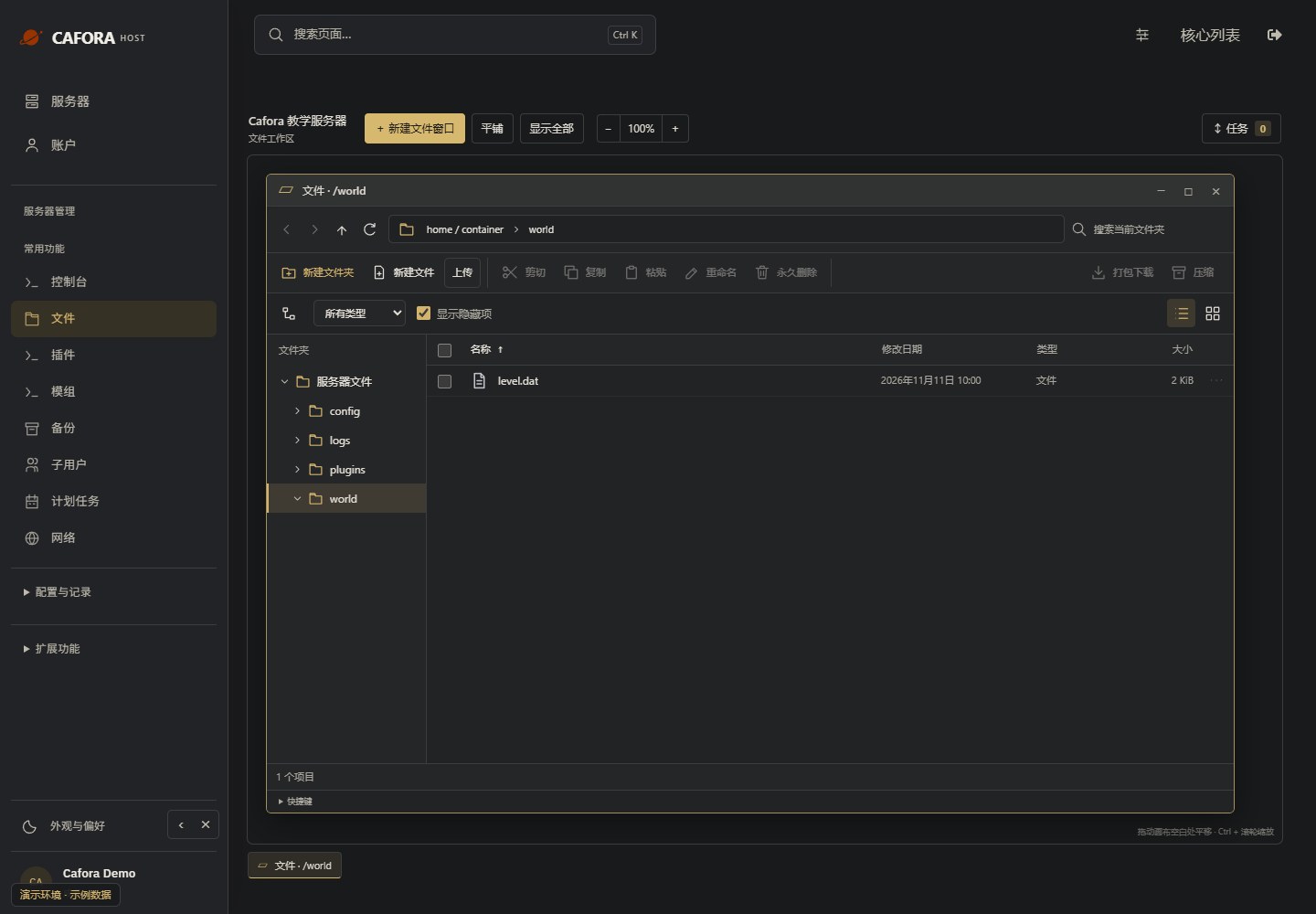
Check the world structure
Open the intended world folder and locate level.dat. Preserve dimensions and related data. An extra world/world layer after extraction can prevent the intended world from loading.
Open the existing text file
Double-click the original server.properties or another supported text file. Check its full path in the editor window; a JAR or binary world file is not a text configuration.
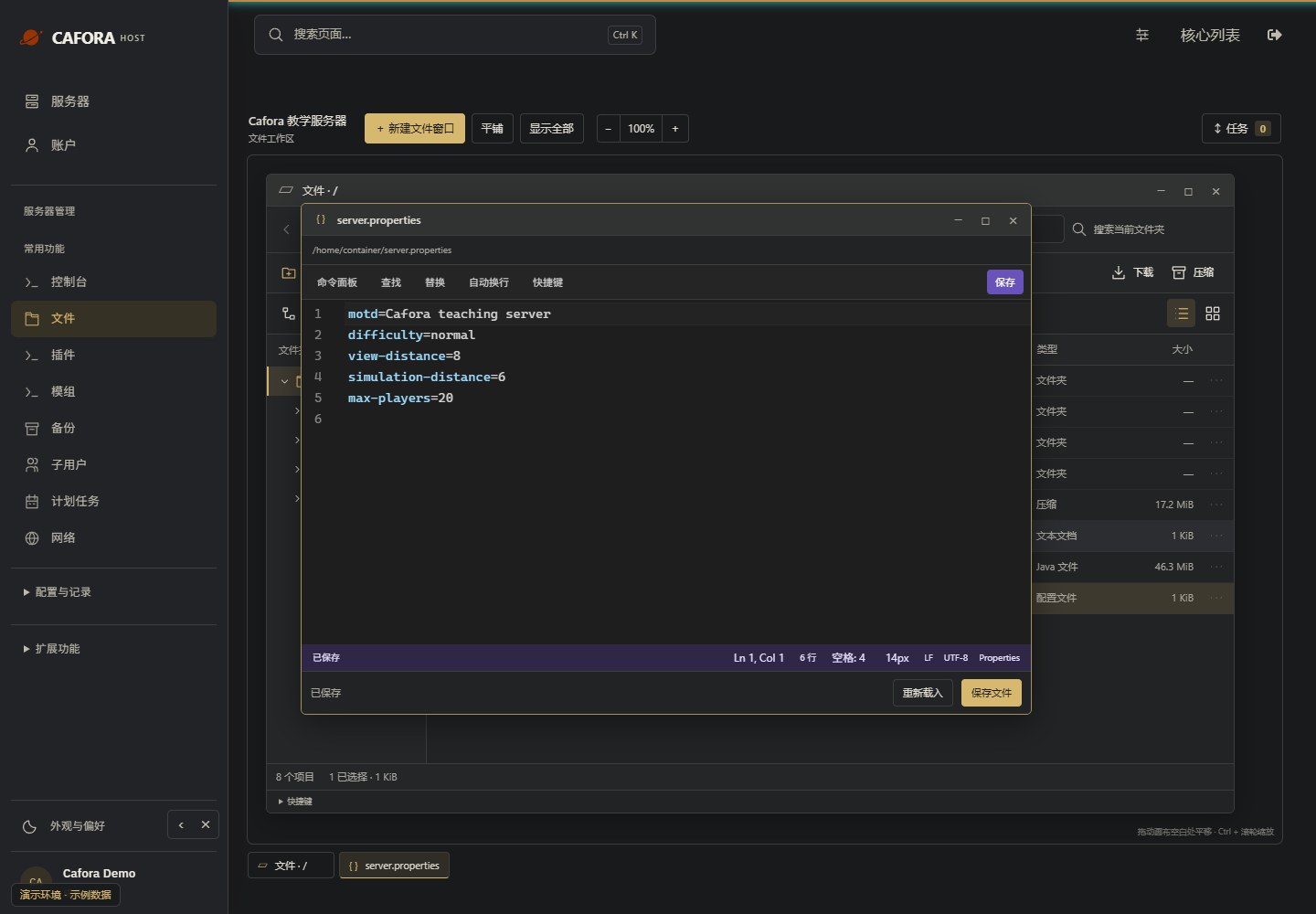
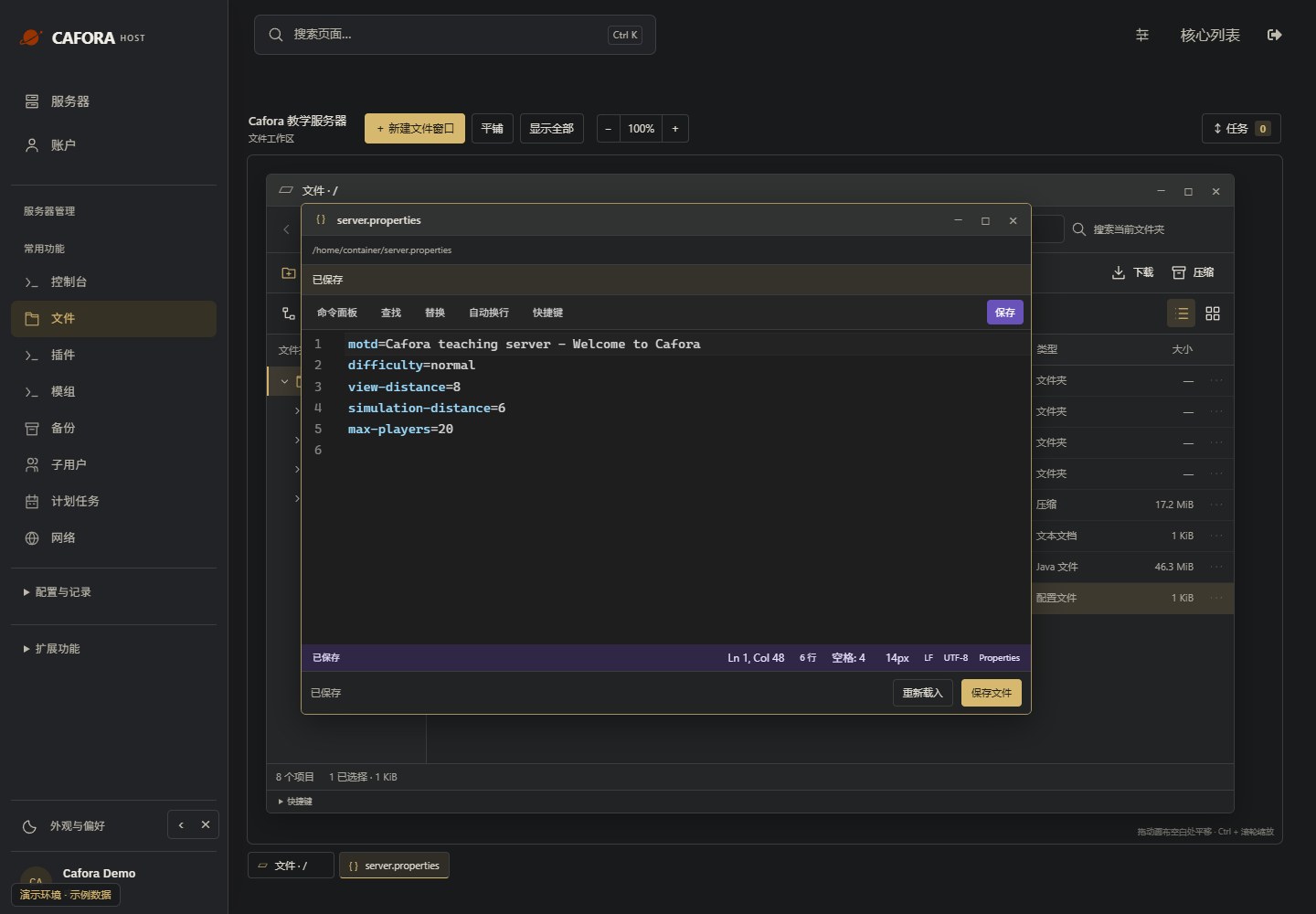
Save and confirm the status
Choose Save or the displayed shortcut and wait for Saved. If saving fails, preserve your edits before closing the window. Restart when the setting requires it and check the result.
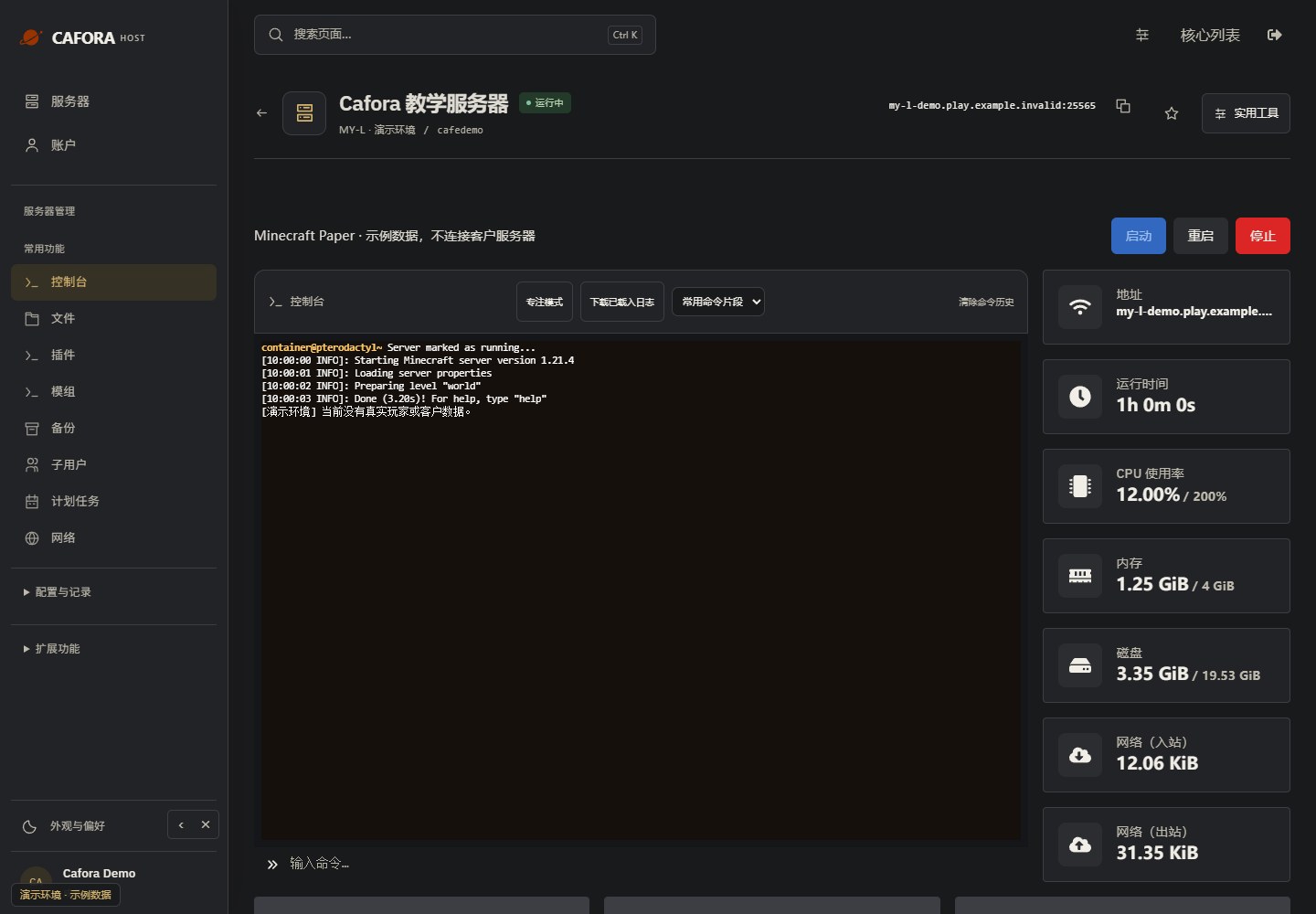
Start and verify readiness
Choose Start for an offline server. Read the startup output and confirm readiness before reconnecting players. Check the log if startup fails rather than repeatedly restarting.