Order, checkout and provisioning
Updated steps and current-interface reference for order, checkout and provisioning.
Illustrated procedure
Screenshots show the current application with demonstration data. Use your own service details; click an image to inspect it at full size.
Compare plans
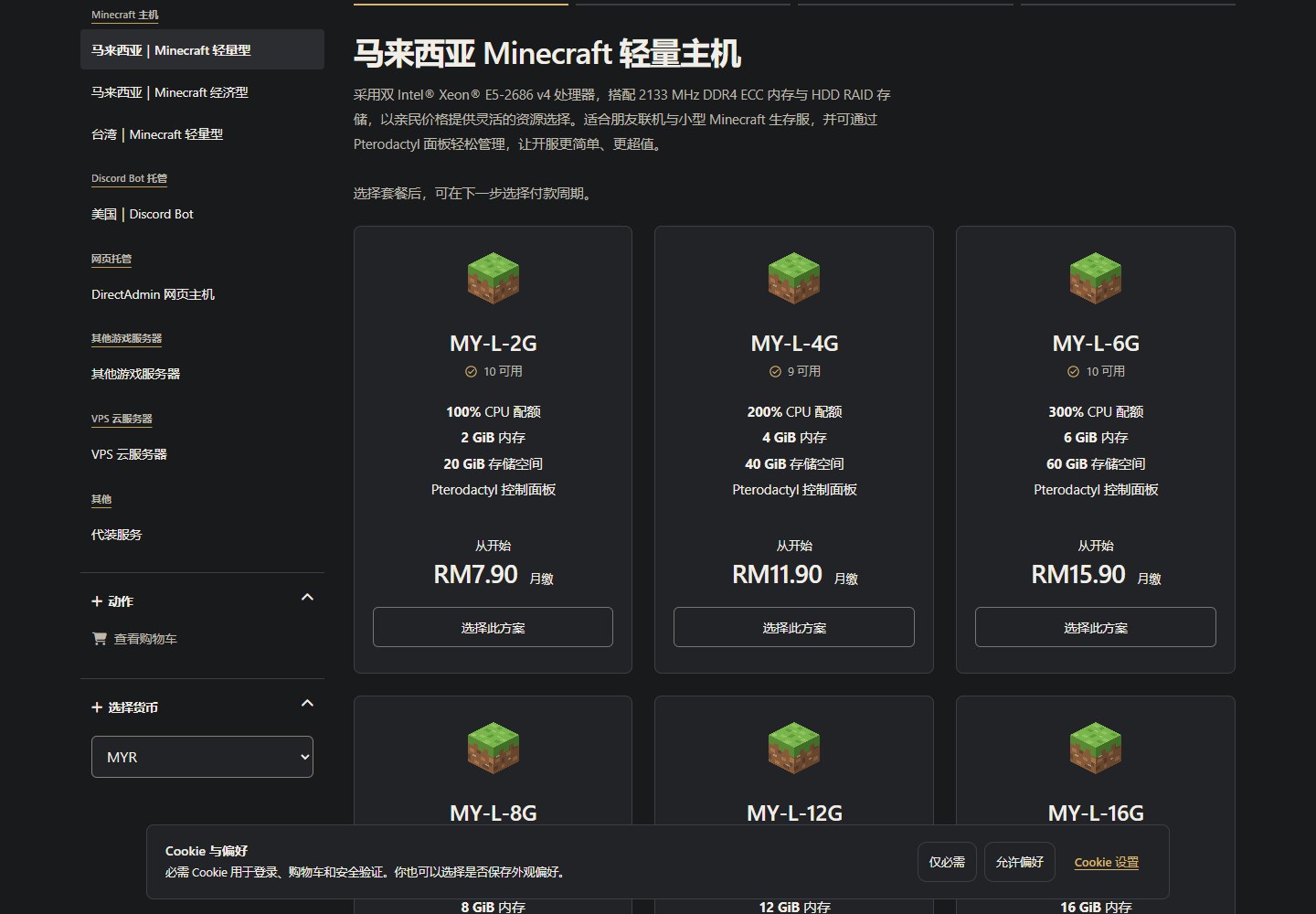
Open the Store and check the product, region, CPU, memory, disk and current availability.
Configure the billing cycle
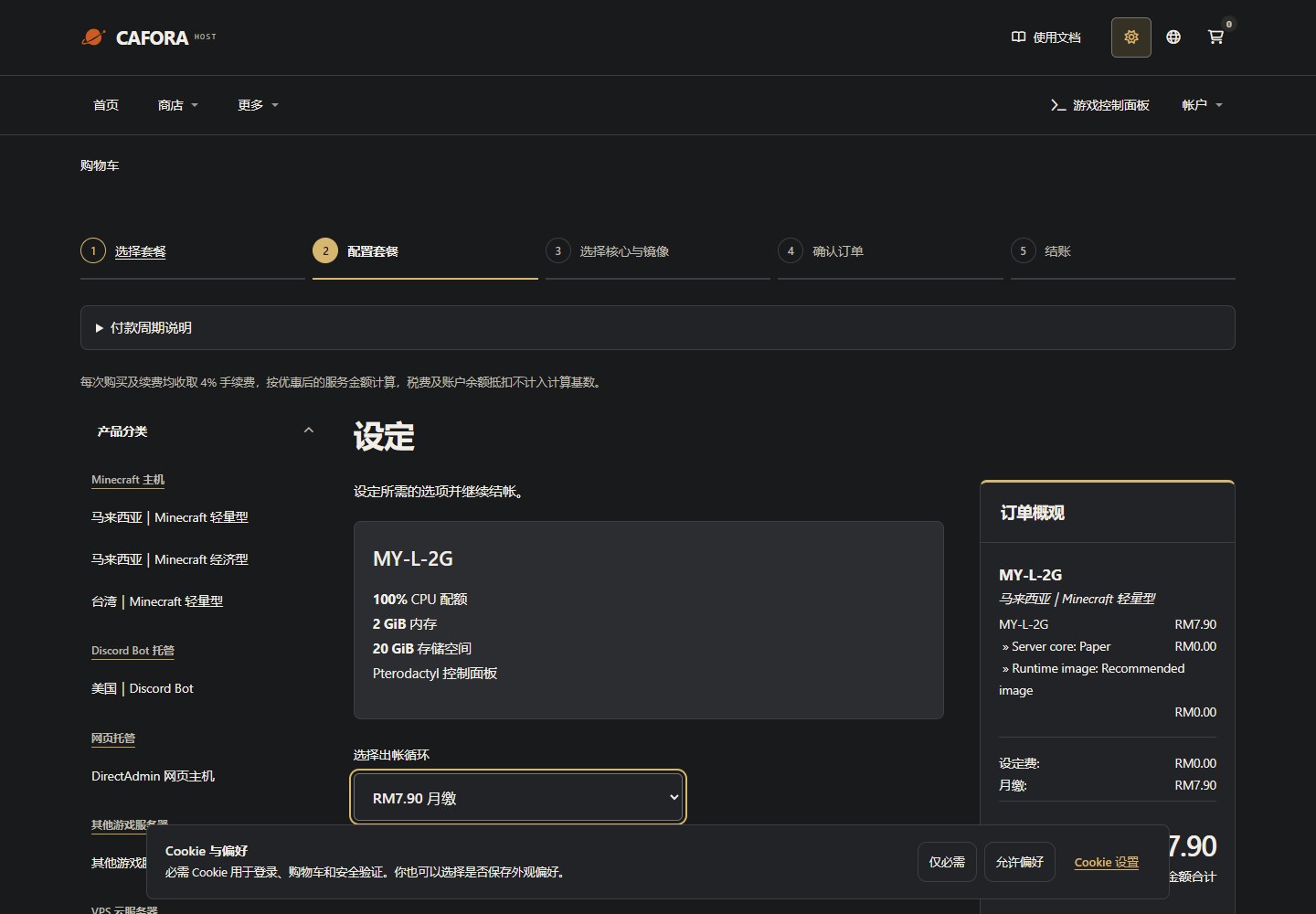
Choose the plan and billing cycle. Compare the whole cycle amount and renewal terms; longer periods are not automatically cheaper.
Choose the server core
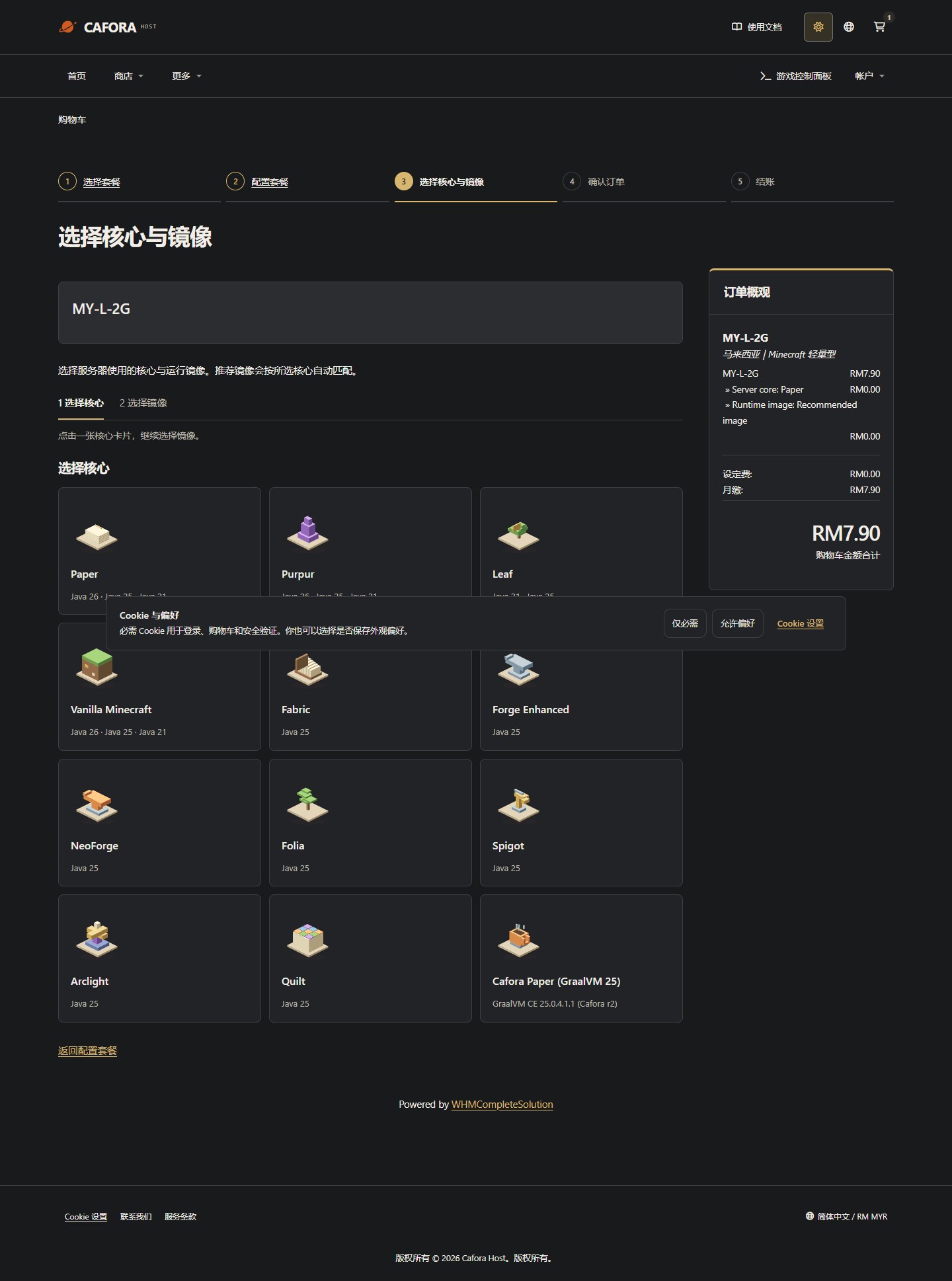
For a Minecraft order, choose the compatible core card. Plugins and mods require different server software; the offered choices depend on the product.
Choose the runtime image
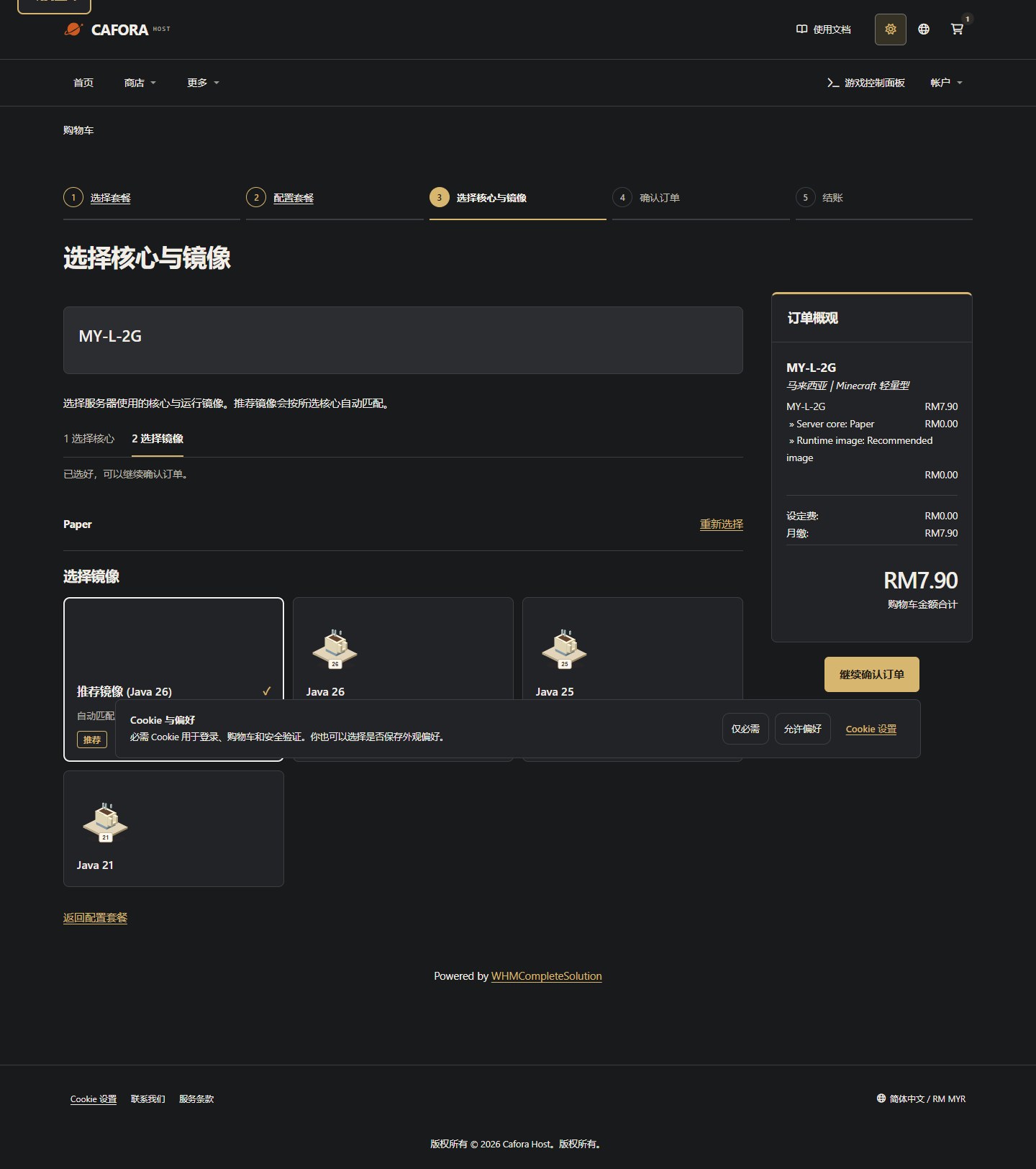
Choose the recommended image or a compatible Java image. Selecting the core alone does not complete this stage. Continue to order review after both choices are selected.
Review the complete amount
Check the product, core, runtime, currency, billing cycle and final total. A 4% processing fee applies to purchases and renewals on the discounted service amount before tax or account credit.
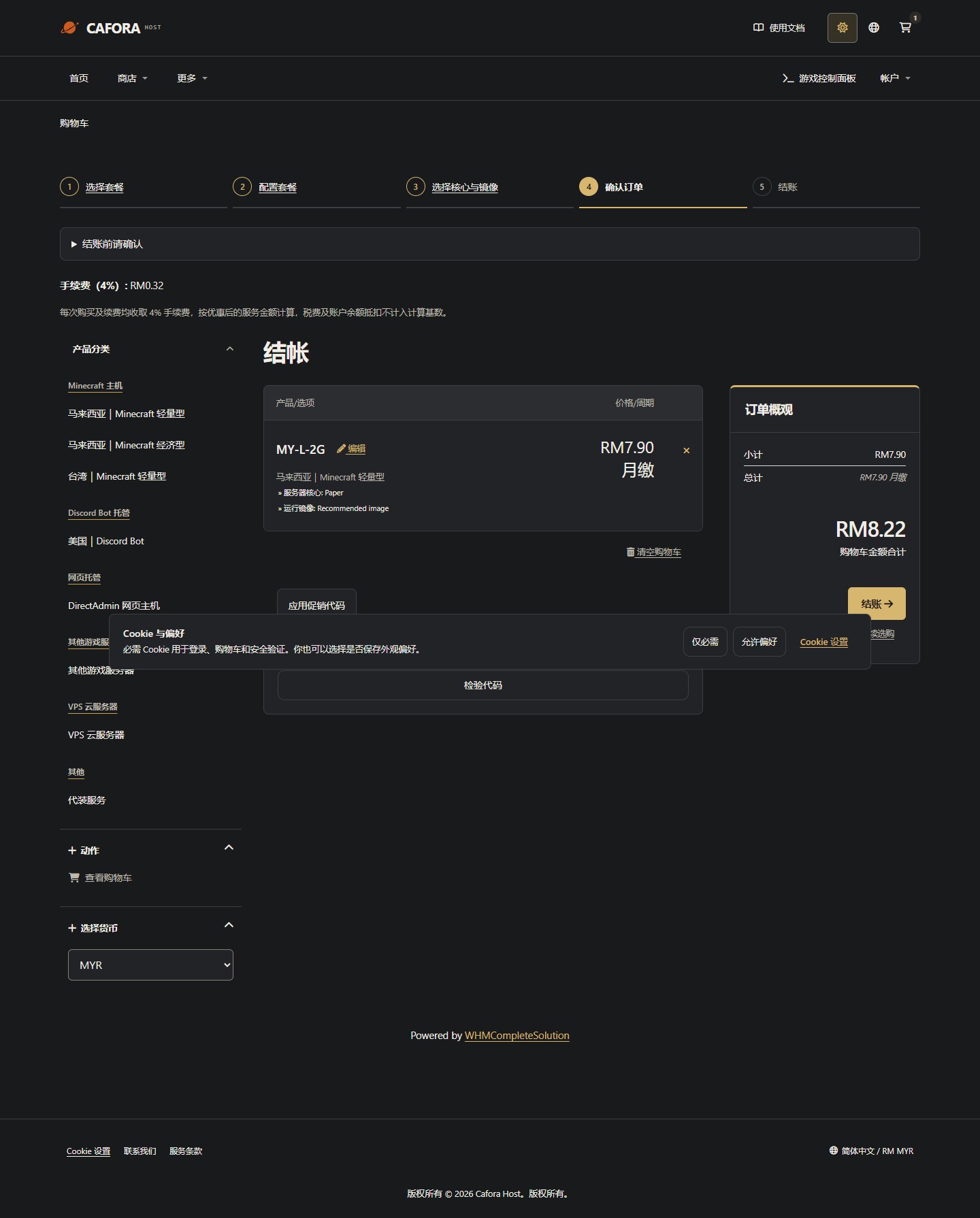
Review checkout before payment
Use your own account and the payment method offered at checkout. Submit only after checking the order and terms. An accepted payment is not the same as completed provisioning; follow the service notification.
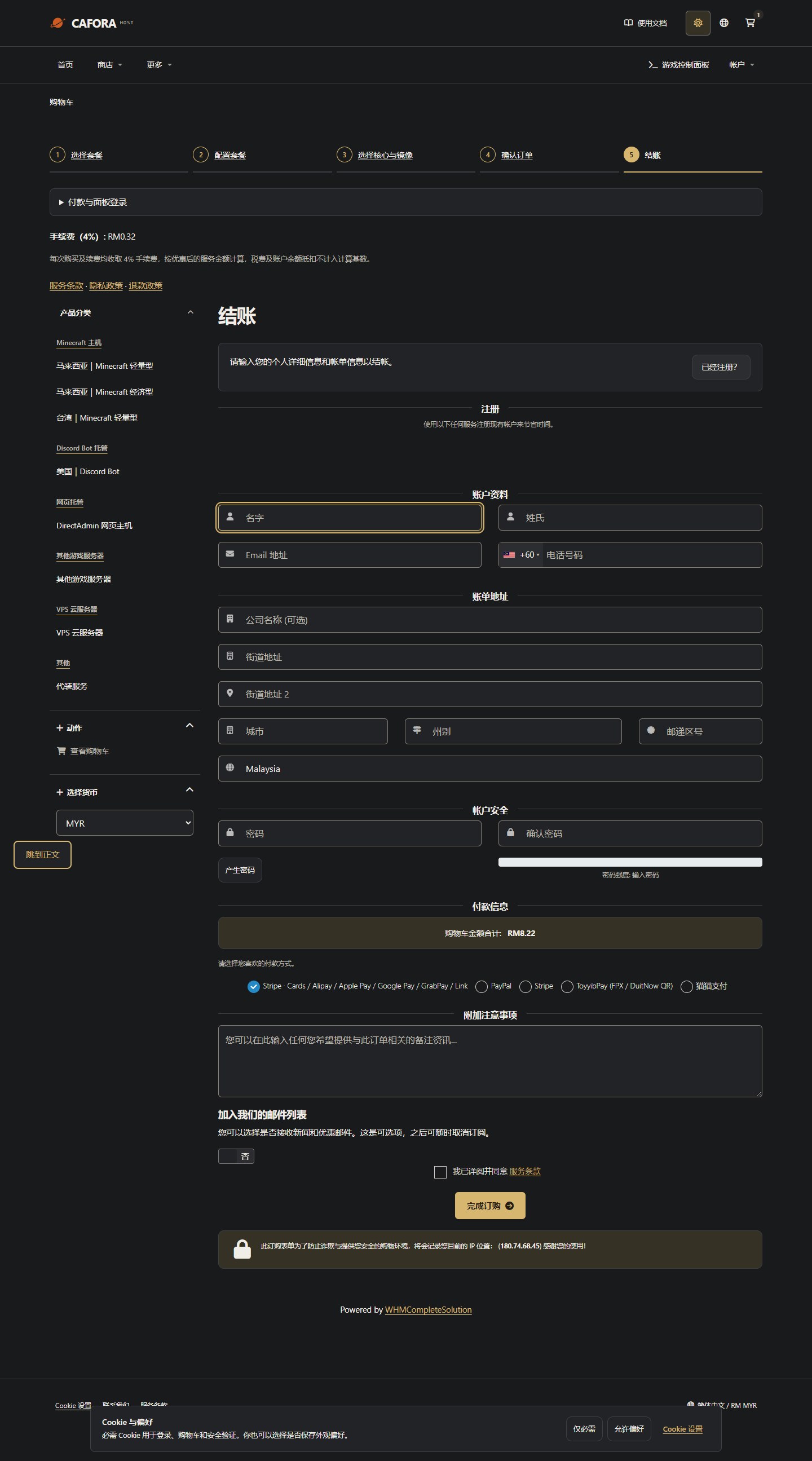
Check order, payment and runtime separately
| Where to look | Status or message | What to do next |
|---|---|---|
| Store order | Accepted / Active | Check the associated service; acceptance alone does not confirm payment or successful provisioning |
| Store invoice | Unpaid | Payment is still outstanding or awaiting confirmation; check the amount, instructions and due date |
| Store service | Pending | Wait for provisioning; contact support if you receive a provisioning failure notification |
| Store service | Active | The service record is enabled; check installation and runtime in your own Panel account |
| Panel console | Offline | Read first-start messages, EULA prompts and logs before starting |
| Panel console | Done / software ready message | Connect using this service's assigned address and port |
Cat Payment, payment confirmation and early activation
Convenience-store payments and manual confirmation take time. In the same support ticket, provide the order/invoice number, payment method and current progress. Include the necessary receipt if payment was made. Do not submit another order or pay again just because the status has not updated.
Early activation requires staff to confirm capacity and arrangements; approval is not guaranteed. If approved, the service may be Active while its invoice remains Unpaid. Activation does not settle the invoice or automatically extend its due date. Complete payment according to the invoice and arrangements confirmed by support.
If the server is missing, check that you signed in to the Panel account specified in your activation details, then contact support. Follow the first-start guide to check whether the game is ready. Do not create a duplicate order.