Network Troubleshooting
Troubleshoot network issues with your Cafora Minecraft server.
Illustrated procedure
Screenshots show the current application with demonstration data. Use your own service details; click an image to inspect it at full size.
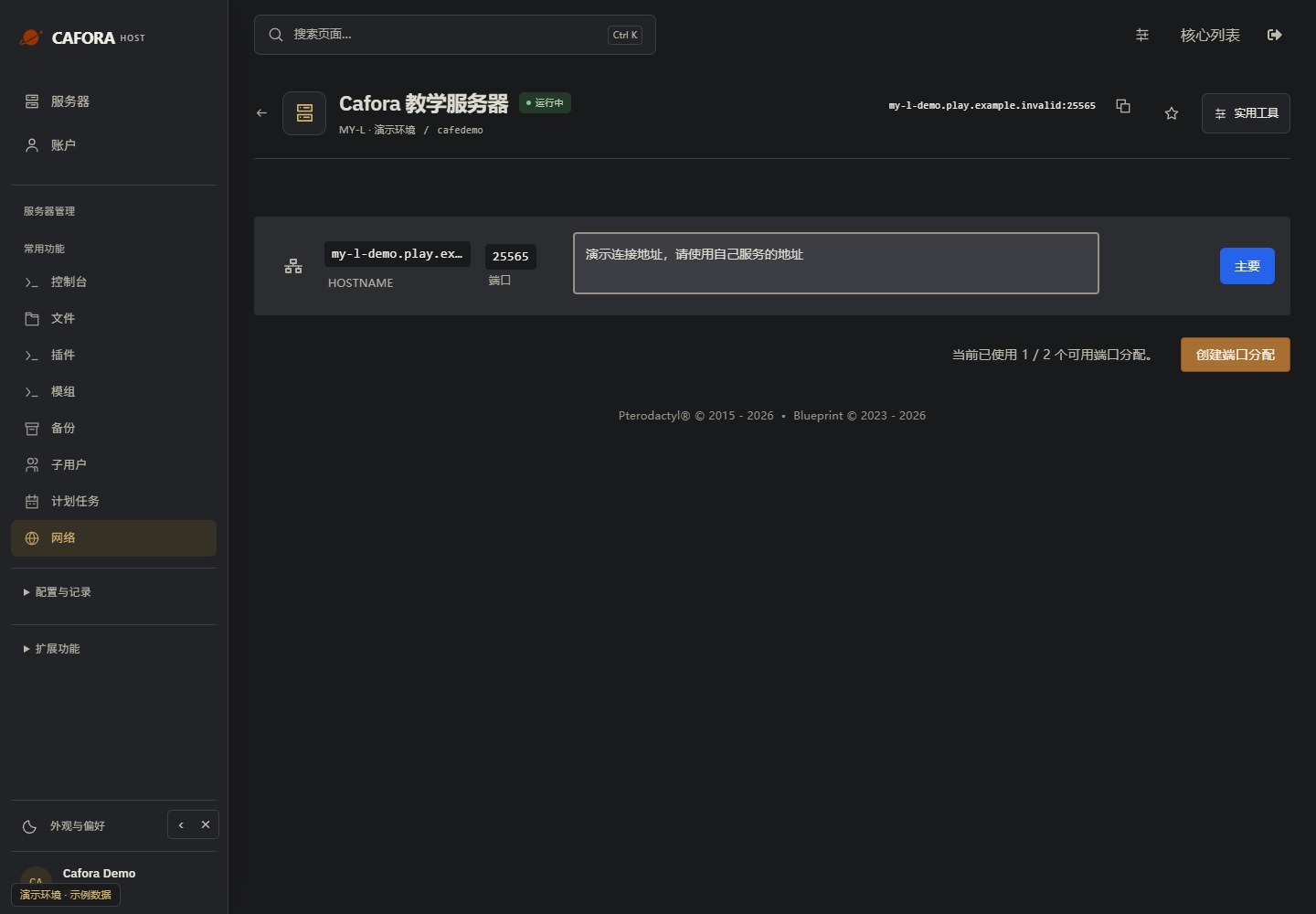
Copy the assigned game endpoint
Open Network and use your service’s primary hostname and port. Keep the port when joining Minecraft. Never copy the example.invalid address in this guide.
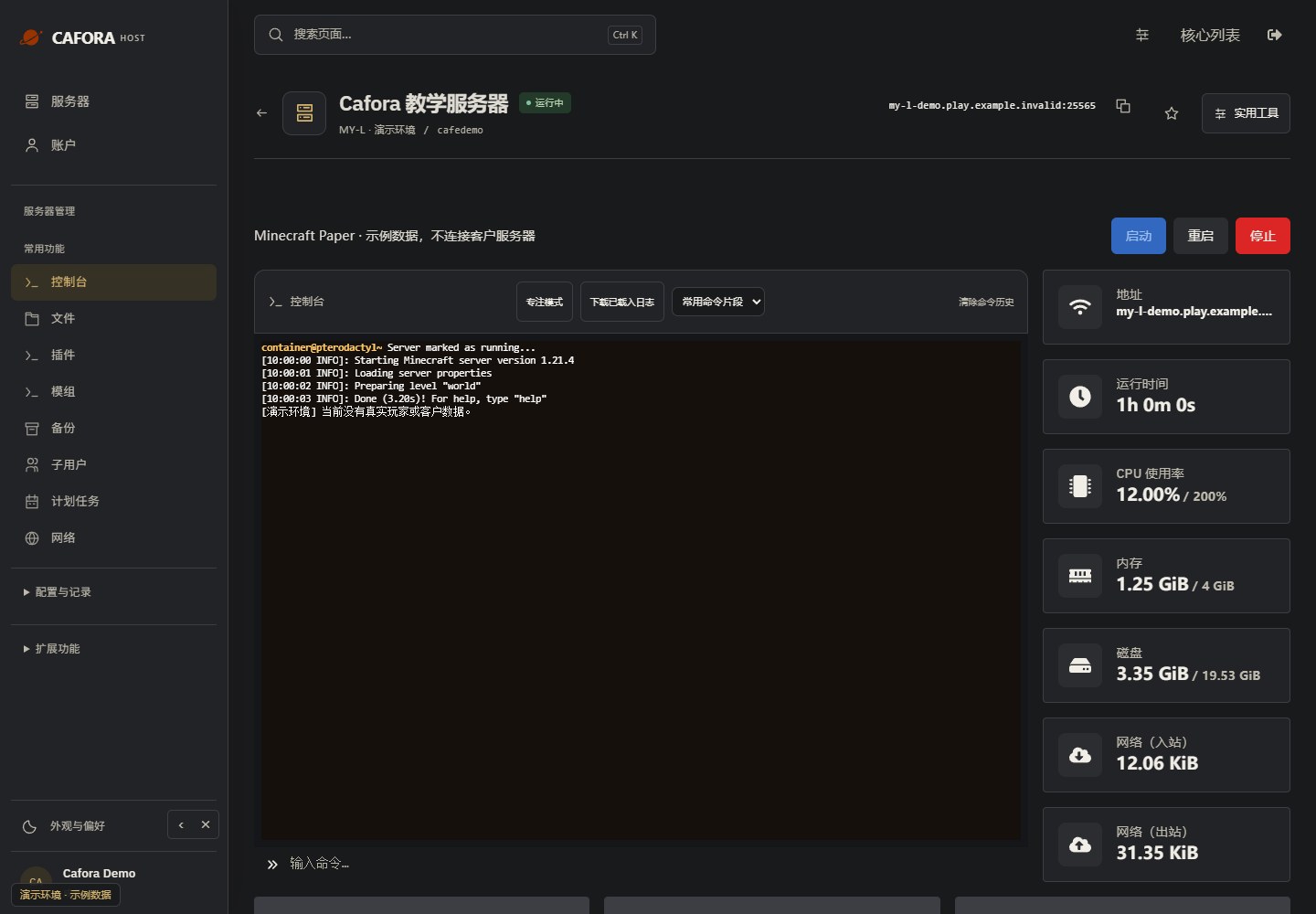
Check the console
Open Essentials → Console. Check the current state, startup output and errors before making changes. Wait for Done or your software’s ready message before joining.
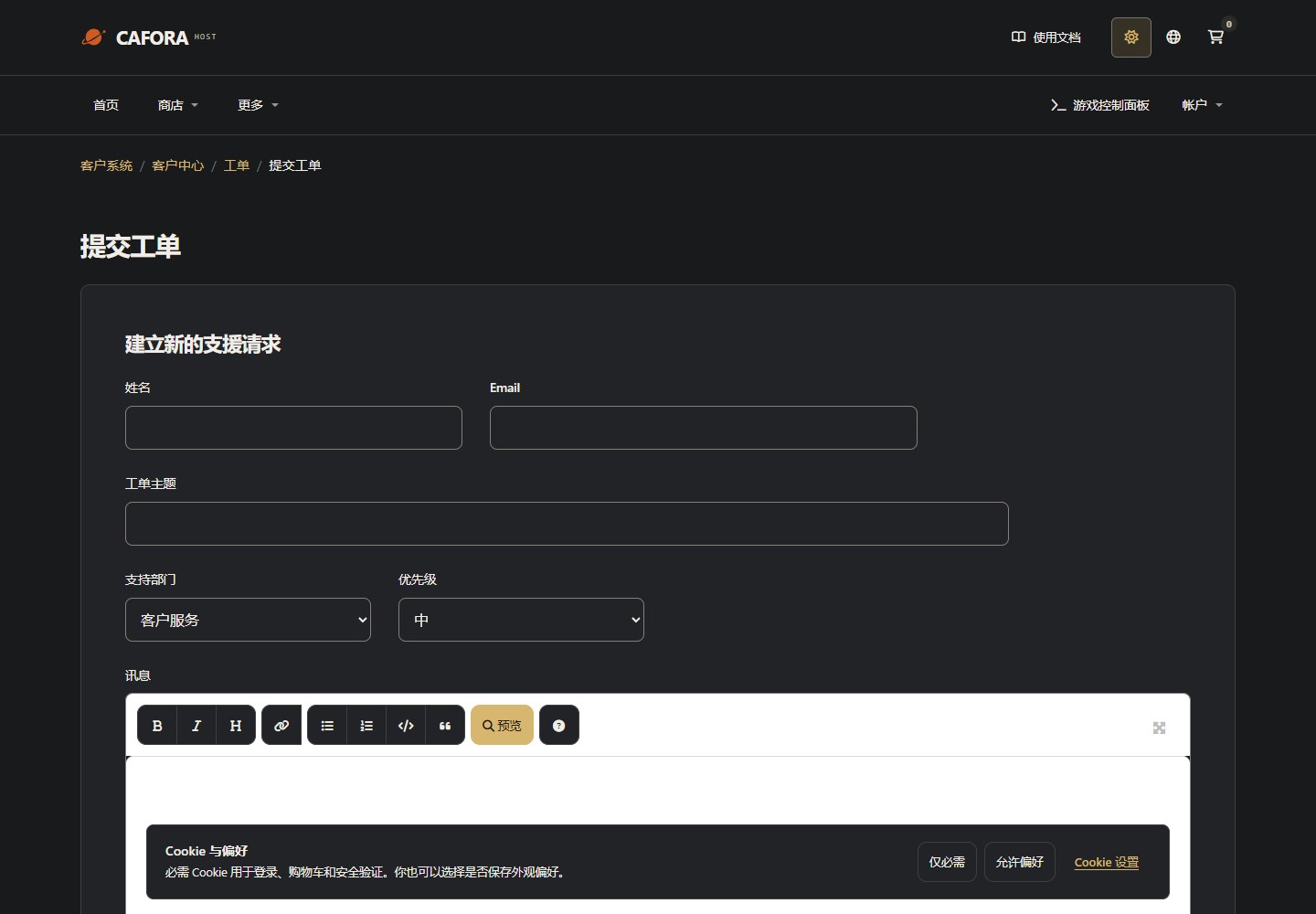
Describe the request to support
Open a support ticket with the service or invoice ID and the requested action. For connection issues include time, error and MTR evidence. Never include passwords, tokens or card details.
Connection Refused
- Server may be offline — check status in dashboard
- Wrong address — verify the server address
- Port blocked — use the assigned panel port and confirm Cafora has configured entry-point forwarding
- Connecting to the origin IP directly — the origin IP does not accept Minecraft connections; use the server hostname instead
Timeout
- Server is overloaded — check CPU and RAM usage
- Network congestion — try again later
- Geographic distance — consider a closer region
Lag / High Ping
- See High Ping
- See Performance Overview
See Also
WinMTR Guide
Collect a packet loss and latency report with WinMTR for support.