WinMTR Guide
Use WinMTR on Windows to investigate high ping, packet loss and disconnects, and export a report for Cafora support.
Illustrated procedure
Screenshots show the current application with demonstration data. Use your own service details; click an image to inspect it at full size.
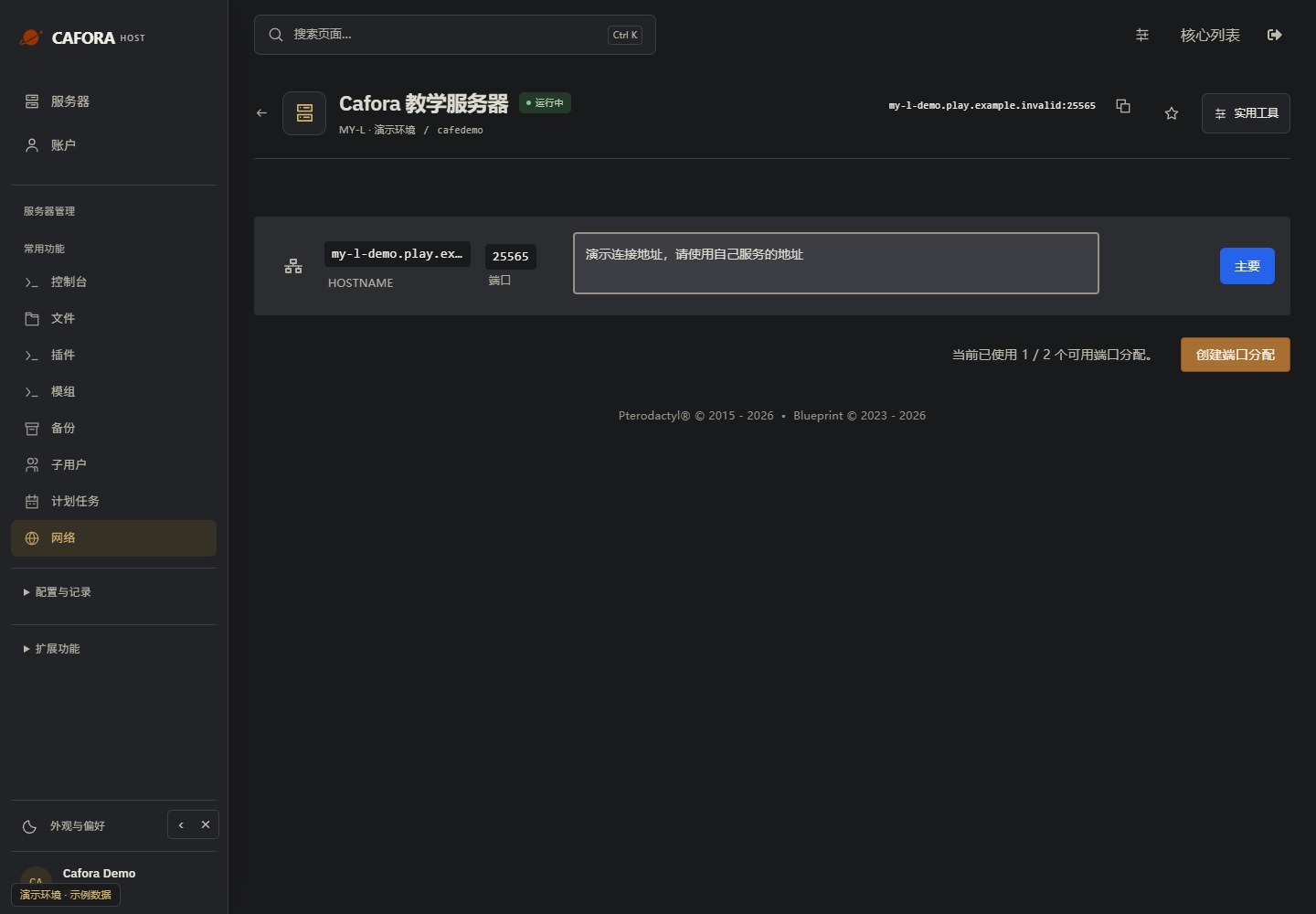
Copy the assigned game endpoint
Open Network and use your service’s primary hostname and port. Keep the port when joining Minecraft. Never copy the example.invalid address in this guide.
Check the console
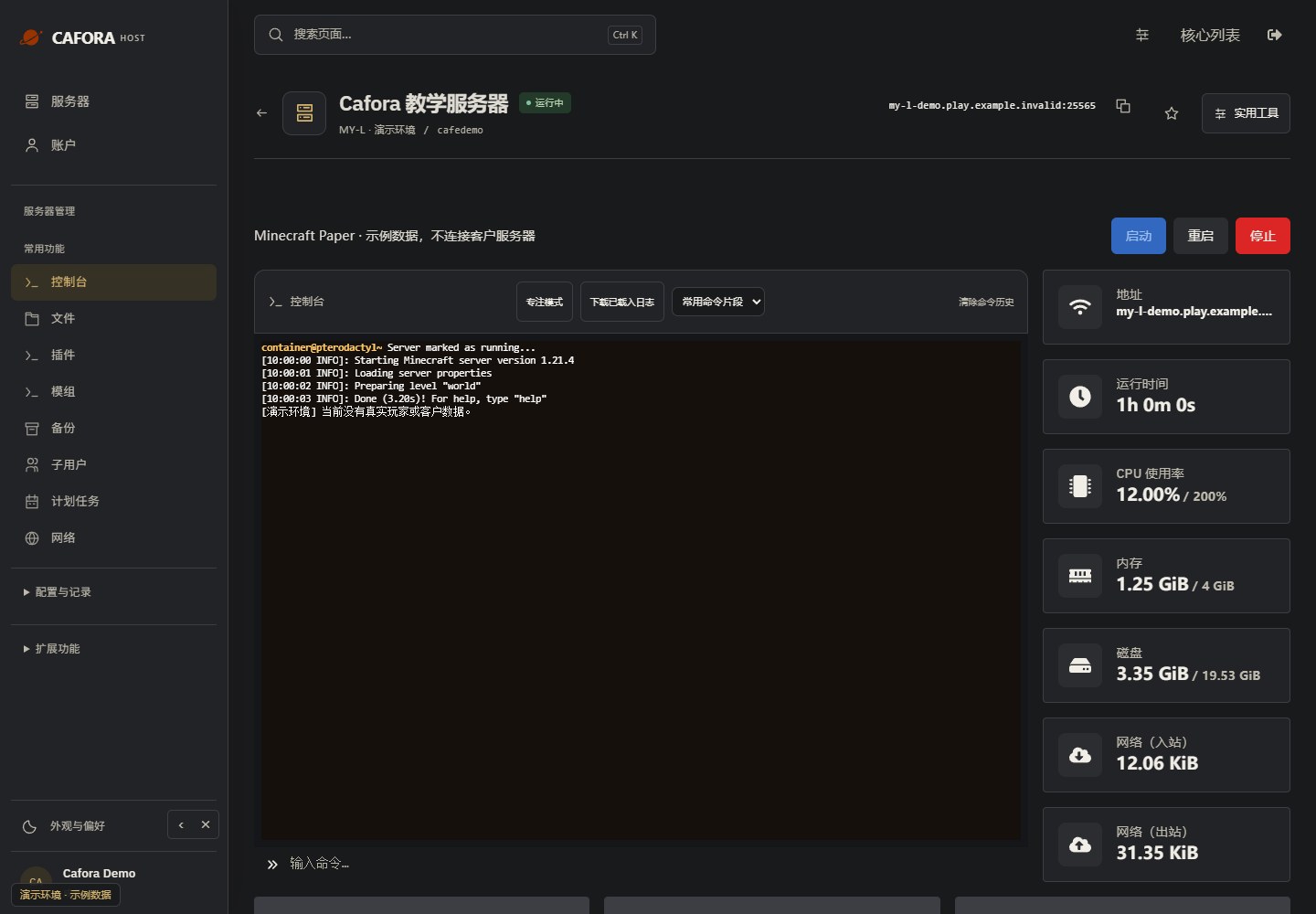
Open Essentials → Console. Check the current state, startup output and errors before making changes. Wait for Done or your software’s ready message before joining.
Describe the request to support
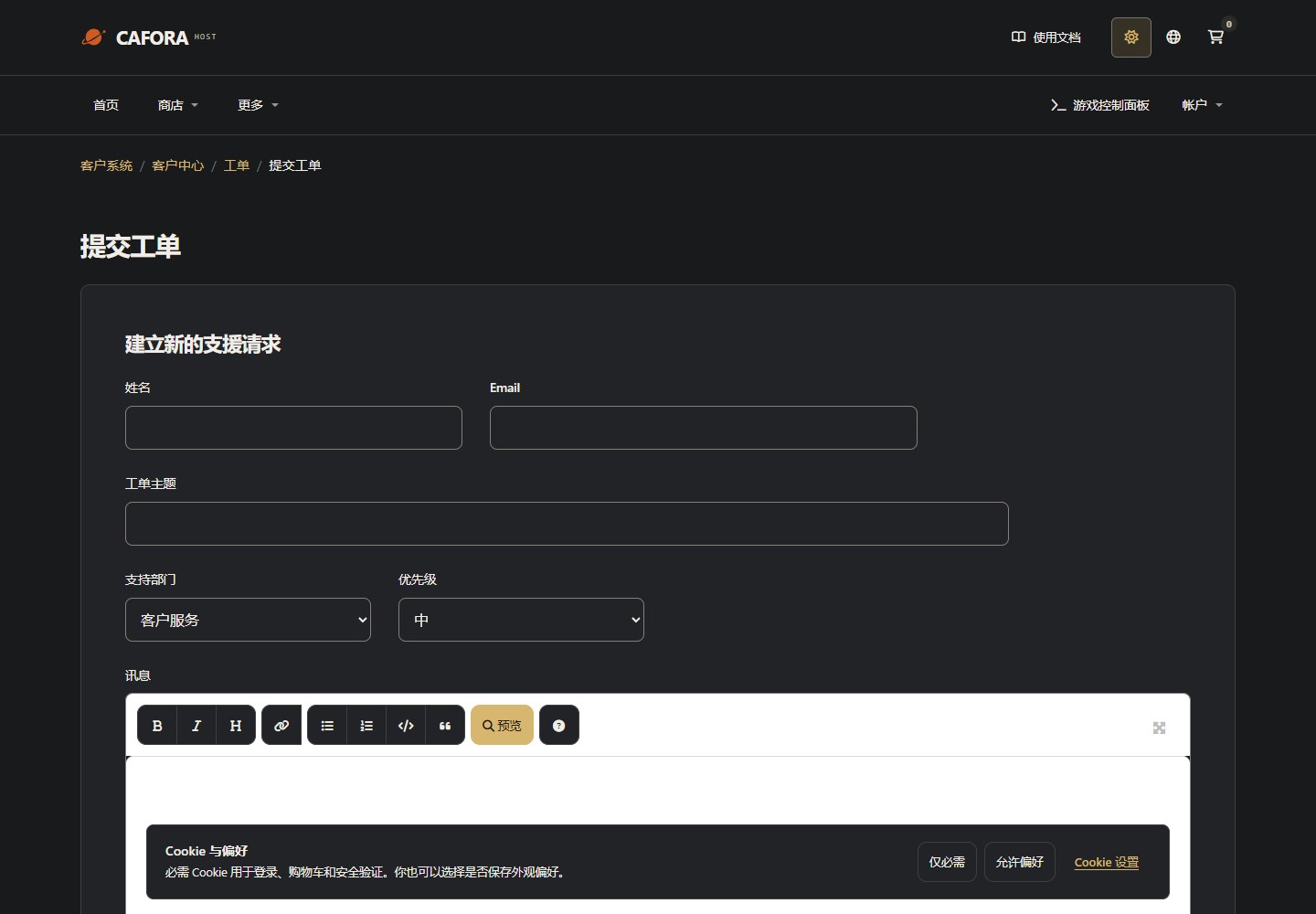
Open a support ticket with the service or invoice ID and the requested action. For connection issues include time, error and MTR evidence. Never include passwords, tokens or card details.
WinMTR repeatedly probes the network hops between your computer and a target, recording latency and missing probe replies. For high ping, intermittent lag or disconnects, run it on the affected player's Windows computer, preferably while the issue is happening.
WinMTR measures ICMP probe replies. It does not directly test Minecraft TCP / UDP ports or measure TPS. A clean report does not guarantee a working game connection, and timeouts do not prove the server is offline.
1. Download and open WinMTR
- Open the WinMTR Redux releases page. Download a binary ZIP from Assets, rather than Source code. The Redux fork supports IPv6.
- Extract the entire ZIP and run
WinMTR.exefrom the build matching your Windows architecture. For 64-bit Windows, normally choose x64. You do not need to install it on the server. - If a runtime library is missing, use the static build offered on that release page. If security software blocks the program, verify the download source and check its specific allow rule instead of disabling the whole firewall.
2. Enter the correct target
Open your server's 网络 / Network tab in the server panel. Copy the full public hostname of the 主要 / Primary allocation, or use a diagnostic IP specified by Cafora support.
Enter only the hostname or IP in Host, with no protocol, port or path:
| Example address | Enter in Host |
|---|---|
play.example.com:25565 | play.example.com |
203.0.113.10:25565 | 203.0.113.10 |
These are formatting examples, not test targets. Do not substitute the website, panel, SFTP endpoint, internal IP or node management IP. If a custom domain relies on Minecraft SRV records, use the actual hostname assigned in the panel or confirm the target with support. WinMTR does not follow Minecraft SRV records to find the game server.
If the hostname resolves to multiple addresses, record the IP actually tested. IPv4 and IPv6 can follow different paths; use the address family of the affected connection, or ask support to confirm the target.
3. Run the test
- Leave Options at their defaults. If changing the probe interval, use 1 second to avoid excessive probing.
- Click Start and run for 5–10 minutes, reproducing the lag or disconnect in the game where possible. Aim for at least approximately 300 probes, rather than stopping after a few seconds.
- Note the exact issue time and time zone. Record whether a VPN or game accelerator is active. For comparisons, run and save a separate report for each condition.
- Click Stop when finished. Start a fresh test after changing networks or targets, and save separate reports so results from different conditions are not mixed.
4. Export and submit the report
Use Export TEXT to save a .txt file, or Copy Text to clipboard to copy the full result. Submit it in a support ticket through the client area, including:
- Server name, game connection address and the target IP actually tested.
- Test start and end times, time zone, and the times of lag or disconnects.
- Player's country / region, ISP, wired or Wi-Fi connection, and VPN / accelerator status.
- Symptoms, whether multiple players were affected at once, and the complete text report.
Reports may contain the player's public IP and routing details. Submit them privately; redact sensitive addresses before sharing publicly and keep the original for support.
5. Read the results
| Column | Meaning |
|---|---|
| Hostname | Name or IP of a network hop |
| Loss % | Percentage of unanswered probes at that hop, not the game packet loss rate |
| Sent / Recv | Probes sent / replies received |
| Best / Avrg / Worst / Last | Minimum / average / maximum / most recent round-trip latency in milliseconds |
Check the destination first, then compare later hops and the actual game symptoms:
- Loss at one intermediate hop only: if later hops and the destination are clean, the router may limit ICMP replies. This alone does not establish forwarding loss.
- An abnormality continues through later hops to the destination: investigate further. Asymmetric routing means a single report cannot identify the exact faulty device or responsible party.
No response from hostor 100% loss: the hop may simply not reply. If the destination is also silent, the report cannot establish end-to-end loss; combine it with connection checks.- A high Worst value alone: compare averages, test duration and issue times before treating one spike as a persistent fault.
Common questions
The host cannot be resolved or no results appear
Remove any :port, https://, spaces or shortened hostname. Check local connectivity and DNS. If it still fails, send the error, target and test time to support; do not substitute the origin IP yourself.
WinMTR is clean but the game still lags
Continue with High Ping / Latency and TPS. For connection failures, see Cannot Connect. ICMP probes do not cover every issue with game ports, proxy forwarding or server health.